

How to Fix USB Device Not Recognized in Windows 11 and Windows 10
How to Fix USB Device Not Recognized in Windows 11 and Windows 10
If you’re staring at a “USB Device Not Recognized” message right now, take a breath. This is one of the most common Windows hiccups, and in almost every case, your files and your device are perfectly safe.
This error usually shows up because of a loose connection, a power-saving setting cutting power to the port, or a confused USB driver not because your device or its data is damaged. This guide walks through exactly why this happens and how to fix it, step by step, starting with the simplest checks and moving toward driver- and firmware-level fixes if needed.
What Does “USB Device Not Recognized” Actually Mean?
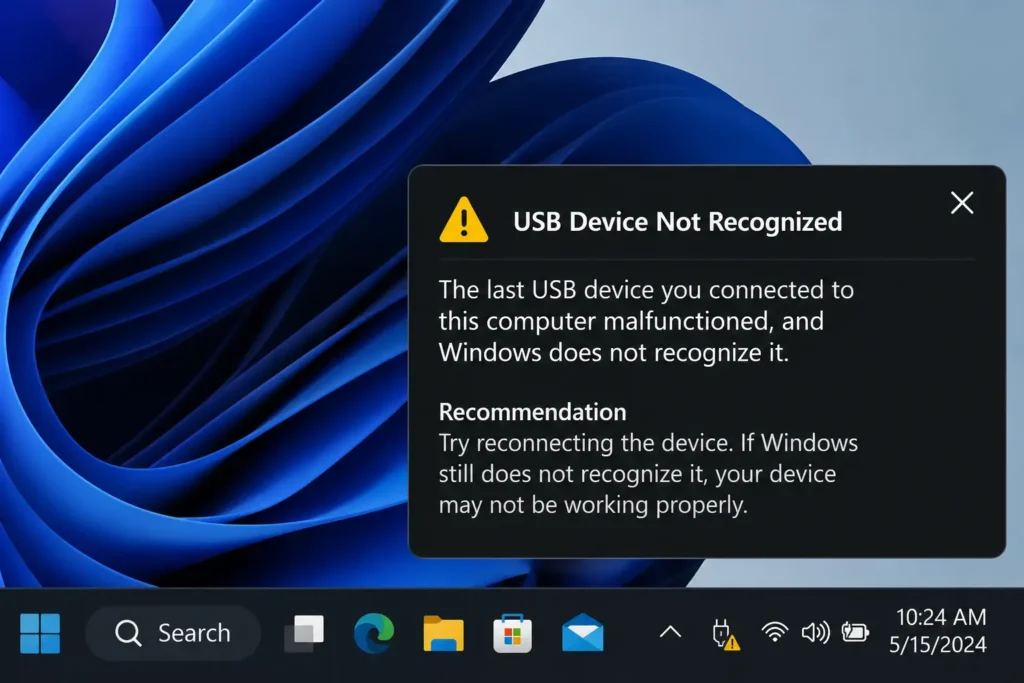
Here’s the simple version. Every time you plug something into a USB port a flash drive, a mouse, a printer, your phone your computer and that device have a quick “handshake.” Windows asks the device to introduce itself: what it is, what it needs, and how it wants to talk to the computer.
When that handshake goes smoothly, your device just works. When it doesn’t because of a loose connection, a power hiccup, or a confused driver Windows throws up its hands and says, essentially, “I have no idea what this thing is.” That’s your “USB Device Not Recognized” or “Unknown USB Device” error.
You might also see this show up as slightly different messages depending on what exactly went wrong:
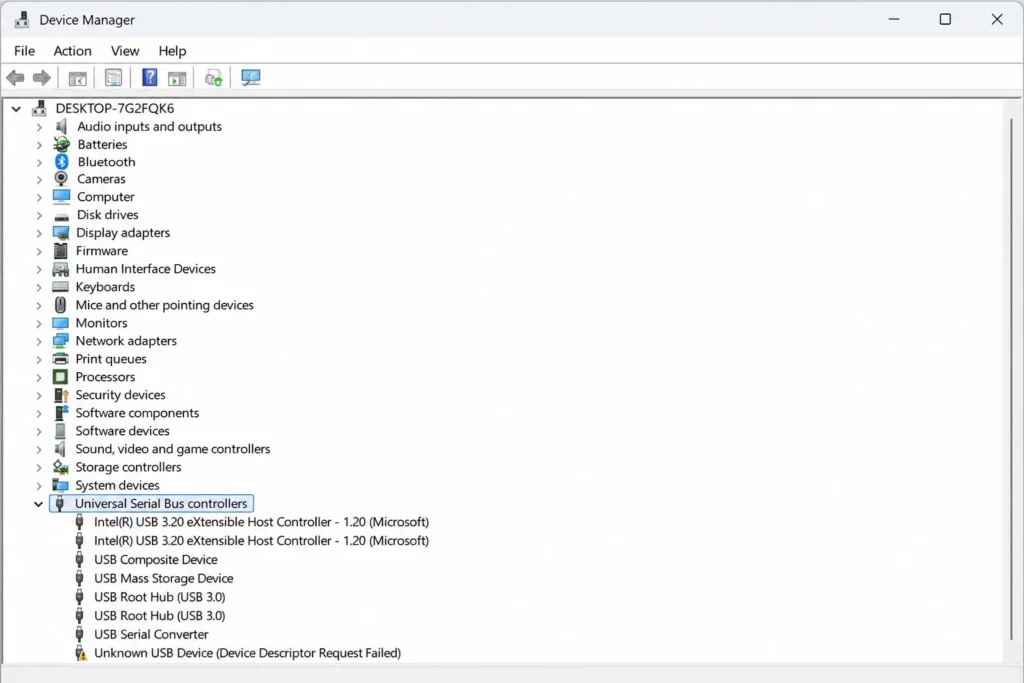
Sometimes it’s labeled a USB Device Descriptor Request Failed, which basically means Windows tried to ask the device for its details and never got a proper reply in time. Other times you’ll see Port Reset Failed, or in Device Manager, you’ll spot a little yellow warning triangle next to “Unknown Device” with an error Code 43 or Code 10. They all point to the same basic problem: Windows and your USB device didn’t complete their introduction properly.
This sounds like something is broken on a deep level, but most of the time it’s a small, fixable glitch not a dead device.
Quick Fixes to Try First (Before Anything Technical)
Before you dive into Device Manager or start uninstalling drivers, try these simple things first. Many “USB not recognized” cases get resolved at this stage, before you need to touch Device Manager or drivers at all.
Unplug, Wait, and Reconnect
I know it sounds almost too simple, but unplug the device, count to ten, and plug it back in ideally into a different USB port. This simple step resolves a surprising number of cases, especially with USB flash drives and mice.
Try a Different USB Port (Preferably at the Back of Your PC)
If you’re on a desktop, avoid the front-panel ports if you can. Those are often connected through extension cables inside the case, which adds extra room for signal loss. Plugging directly into the ports on the back of the motherboard is generally the most direct, most reliable connection your computer offers.
Test the Device on Another Computer
This step tells you a lot. If your flash drive or external hard drive works fine on a different laptop or PC, then the problem is with your computer’s USB setup, not the device itself. That’s actually good news it usually means an easier fix.
Do a Full Power Drain (This One Actually Works)
This method works because motherboards keep a small trickle of power flowing to USB ports even when your computer is fully shut down. Over time, this can leave the USB controller stuck in a weird state.
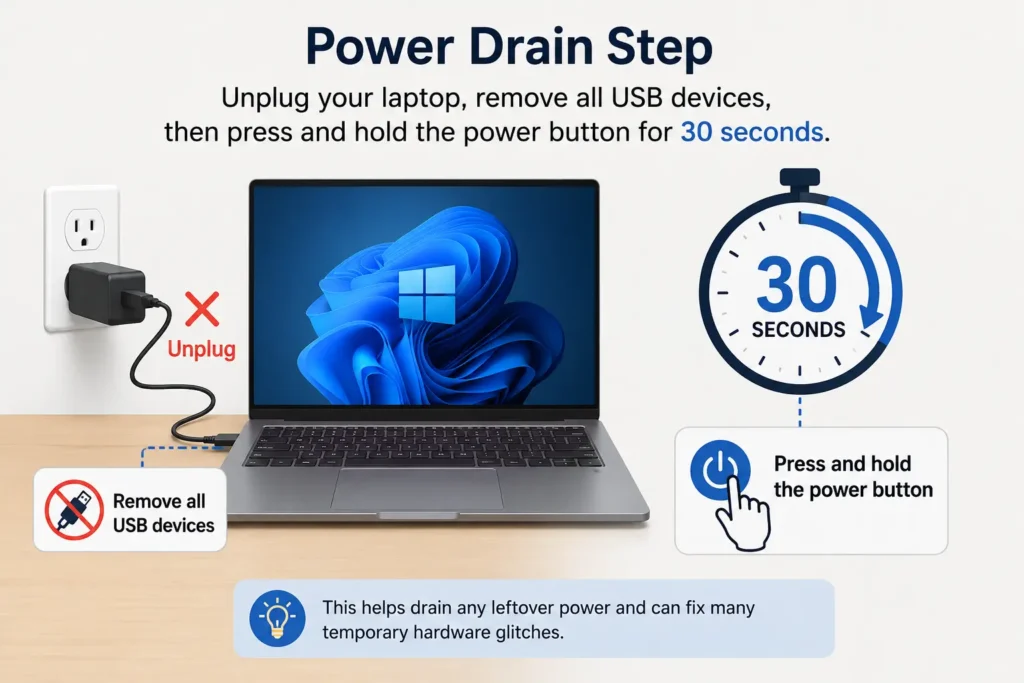
For a desktop: shut down your PC completely, unplug the power cable from the wall or the power supply, then press and hold the power button for about 30 seconds. This drains any leftover electricity sitting in the motherboard. Leave it unplugged for 15 to 30 minutes, then reconnect everything and boot up.
For a laptop: shut it down, unplug the charger, and if the battery is removable, take it out. Hold the power button for 30 seconds. If your laptop has a sealed-in battery, hold the power button for around 20 to 40 seconds instead this forces what’s called an Embedded Controller reset.
Fixing “USB Device Not Recognized” Through Windows Settings
If the quick fixes above didn’t solve it, the next likely culprit is Windows’ power-saving settings. This sounds unrelated, but Windows is often a little too aggressive about cutting power to USB ports to save battery and that can make devices randomly drop out or fail to be recognized at all.
Turn Off Fast Startup
Fast Startup is meant to make your PC boot faster, but it can also carry over corrupted hardware states from one session to the next instead of giving your USB controllers a proper fresh start.
To turn it off, open Control Panel, go to Power Options, then click Choose what the power buttons do. Click Change settings that are currently unavailable, then uncheck the box next to Turn on fast startup (recommended). Save your changes and restart your computer.
Disable USB Selective Suspend
This Windows feature lets individual USB ports go into a low-power sleep mode to save energy but some devices don’t wake up properly afterward.
Go to Control Panel > Power Options, click Change plan settings next to your current power plan, then click Change advanced power settings. Find USB settings, expand USB selective suspend setting, and set both “On battery” and “Plugged in” to Disabled. Click OK and restart.
Stop Windows From Powering Down Your USB Hubs
Open Device Manager (right-click the Start button and select it, or press Windows key + X). Expand Universal Serial Bus controllers. For each entry that says “USB Root Hub” or “Generic USB Hub,” right-click, choose Properties, go to the Power Management tab, and uncheck Allow the computer to turn off this device to save power. Do this for every hub listed, then restart.
This step prevents a lot of random USB dropouts down the road, especially for people using wireless mice and keyboards.
For a full breakdown on power settings and battery-related fixes on laptops, you can also check our guide on fixmydaily.com/laptop-battery-draining-fast for related power management tips.
Fixing It Through Device Manager (Driver-Level Fixes)
If the power settings didn’t fix things, the issue is likely with the USB drivers themselves. This sounds intimidating, but it’s really just telling Windows to forget its confused driver info and start fresh.
Uninstall and Reinstall the USB Controllers
Open Device Manager, expand Universal Serial Bus controllers, and right-click on each entry especially anything labeled “Extensible Host Controller” or “USB Root Hub” and choose Uninstall device. Don’t worry, this doesn’t delete anything permanently; Windows will automatically reinstall these drivers the moment you restart your computer.
Just a heads-up: doing this will temporarily disable your USB mouse and keyboard, so if you don’t have a wired backup or a laptop’s built-in trackpad, use the Windows shortcut Alt + F4 on your desktop to bring up the shutdown menu, or simply press your PC’s power button once for a graceful restart.
Fix “Device Descriptor Request Failed” Specifically
If you’re seeing this exact error message, right-click on the flagged “Unknown USB Device” entry in Device Manager and select Uninstall device. Then click the Action menu at the top and choose Scan for hardware changes. Windows will try to redetect and reinstall the driver automatically.
If that doesn’t work, right-click the device again, choose Update driver, then Browse my computer for drivers, then Let me pick from a list of available drivers on my computer. Choose Generic USB Hub or USB Mass Storage Device, depending on what type of device you’re troubleshooting, and finish the wizard.
Reconnecting a Phone That Shows as “Unknown Device”
This one comes up a lot with Android phones. If your phone connects but shows up as an unrecognized device instead of a proper storage drive, it’s usually a driver mismatch, not a broken cable.
On your phone, make sure you’ve selected “File Transfer” mode (not just charging) from the USB notification. Then on your PC, go to Device Manager, find the device under Portable Devices or Other Devices, right-click, choose Update driver, then Browse my computer for drivers, then Let me pick from a list. Choose Portable Devices and select MTP USB Device, then finish the setup.
For more Android-specific fixes, we’ve also covered related topics like fixmydaily.com/android-phone-not-charging and fixmydaily.com/find-saved-wifi-password-android that might be useful if you’re troubleshooting your phone more broadly.
Run System File Checker and DISM
If none of the above worked, there’s a chance some core Windows system files got corrupted. Open Command Prompt as Administrator and type:
sfc /scannowLet it finish completely it can take a few minutes. After that, run:
DISM /Online /Cleanup-Image /RestoreHealthThis repairs the underlying Windows component store. Restart your PC once both scans are done. This combo can fix all sorts of odd Windows behavior beyond just USB issues, so it’s a good one to keep in your back pocket.
What If a USB Drive Isn’t Showing Up in File Explorer?
This is a slightly different scenario, and it trips a lot of people up because the drive makes the connection sound, Windows even acknowledges it plugged in but it just doesn’t appear anywhere in File Explorer.
Check Disk Management First
Press Windows key + X and select Disk Management. Look through the list of drives at the bottom for one matching your USB drive’s storage size. This tells you a lot about what’s actually wrong.
If the drive shows as “Healthy” but has no drive letter next to it, that’s an easy fix. Right-click it, choose Change Drive Letter and Paths, click Add, pick an available letter, and click OK. Your drive should now show up immediately in File Explorer.
If the drive shows as RAW instead of NTFS or exFAT, that usually means the file system structure got corrupted often from unplugging it without safely ejecting first (we’ve all done it). Open Command Prompt as Administrator and run:
chkdsk E: /f /r /xJust replace “E:” with your actual drive letter. This command repairs file system errors and recovers what it can without wiping your files.
If the Drive Shows as “Unallocated” or “Not Initialized”
This is more serious, and it’s worth being upfront: this usually means the partition table is damaged, and recovering it can involve data loss. If your files matter to you, don’t format the drive yet consider getting help from a data recovery specialist first, or at least back up what you can before attempting fixes like creating a new partition through Disk Management.
Firmware and Hardware-Level Fixes (For Persistent Problems)
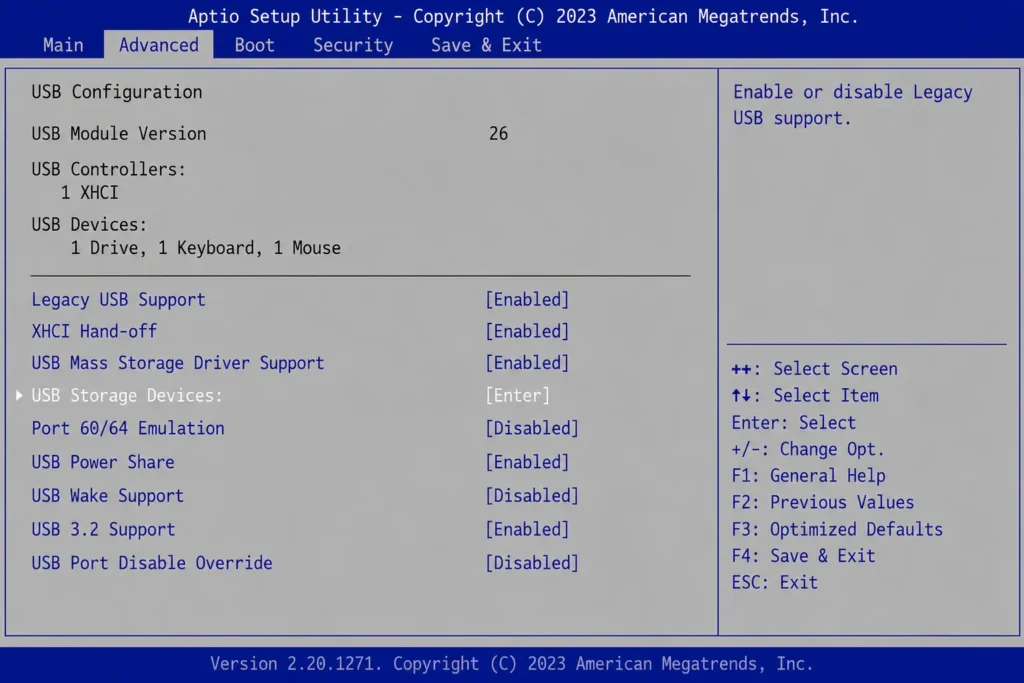
If you’ve tried everything above and USB devices still aren’t being recognized especially if this happens with multiple different devices the issue might sit even deeper, in your motherboard’s firmware settings.
Restart your computer and press the setup key during startup (usually F2, Delete, F10, or Esc, depending on your PC’s brand) to enter the BIOS or UEFI settings. Look for a section called Advanced, Integrated Peripherals, or USB Configuration. Make sure USB Controller is set to Enabled, Legacy USB Support is Enabled or Auto, and XHCI Hand-off is turned On. Save your changes (usually F10) and restart.
It’s also worth checking whether your motherboard or laptop manufacturer has newer chipset drivers available. You can find your exact model by typing msinfo32 into the Windows search bar, then visiting the official support page for your brand whether that’s Dell, HP, Lenovo, ASUS, or another manufacturer to download the latest chipset and USB controller drivers.
A Quick Word on USB-C and Thunderbolt Devices
If you’re dealing with a newer USB-C device that charges fine but won’t transfer data, the issue is often the cable itself. A lot of USB-C cables are built for charging only and simply don’t have the wiring for data transfer. Double-check that you’re using a cable specifically rated for data, and that you’re plugging into a port that actually supports the mode your device needs, like DisplayPort or Thunderbolt, rather than a basic USB 3.2 port. Microsoft’s own USB-C troubleshooting page covers additional USB-C-specific error notifications if you run into one not listed here.
When Nothing Works: It Might Be the Hardware
Sometimes, after trying everything, the problem really is a dead port, a damaged cable, or a failing device. If a USB port doesn’t work with any device at all, across multiple computers, that’s usually a sign of physical damage rather than a software issue.
In that case, a small, affordable powered USB hub can often work as a reliable workaround while you figure out a permanent fix, especially for desktops where opening up the case to check internal connections isn’t something everyone’s comfortable doing.
Final Thoughts
USB errors feel alarming because we rely on these ports for everything our mice, keyboards, phones, and backups. But the vast majority of “USB Device Not Recognized” errors come down to something completely fixable: a power glitch, an overly cautious power-saving setting, or a driver that just needs a fresh start.
Work through the steps in order start simple with the port swap and power drain, move on to the Windows power settings, then the driver reinstall, and only go into BIOS territory if everything else has failed. Nine times out of ten, you’ll have your device back up and running long before you get to that last step. For more official troubleshooting resources, Microsoft’s Troubleshoot common USB problems page is a good reference.
If you’re dealing with other everyday tech issues, check out our guides on Emergency Calls Only and how to pay your electricity bill online in India for more practical fixes.