

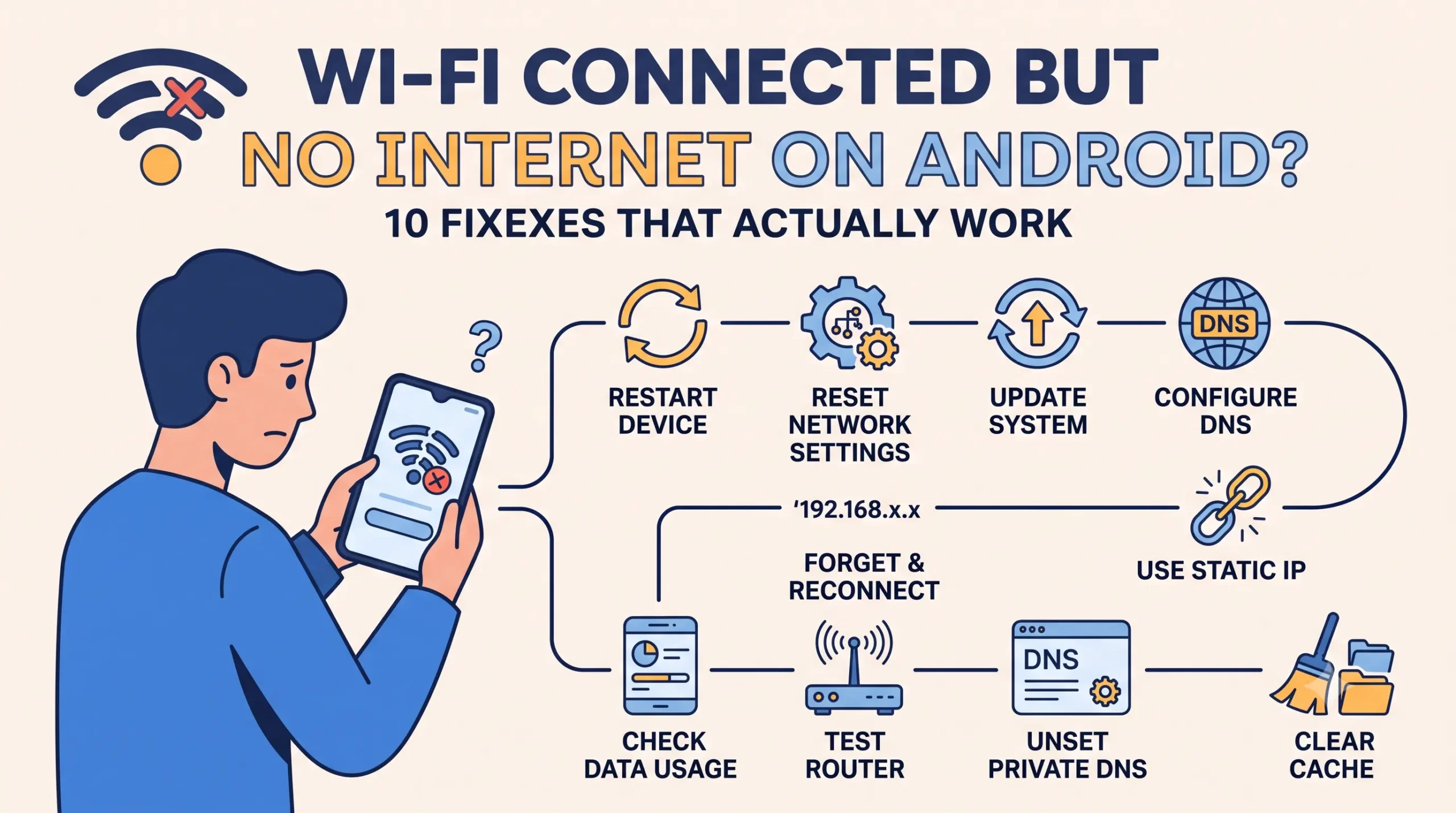
Your phone shows full Wi-Fi bars, but nothing loads. WhatsApp won’t sync, YouTube spins forever, and your browser says there’s no connection even though the Wi-Fi icon insists you’re online.
This happens because “connected to Wi-Fi” and “connected to the internet” are two different things. Your phone has successfully talked to your router, but the router (or the broadband line behind it) isn’t passing traffic through to the wider internet. Android actually checks for this in the background, which is why you sometimes see a small exclamation mark on the Wi-Fi icon or a “Connected without internet” message.
The good news: most causes of this are quick to fix and don’t involve losing any data. Below is a step-by-step way to work through them, starting with the fastest checks and ending with what to do if the problem is on your ISP’s end.
Quick Isolation Check: Is It Your Phone or the Wi-Fi Network?
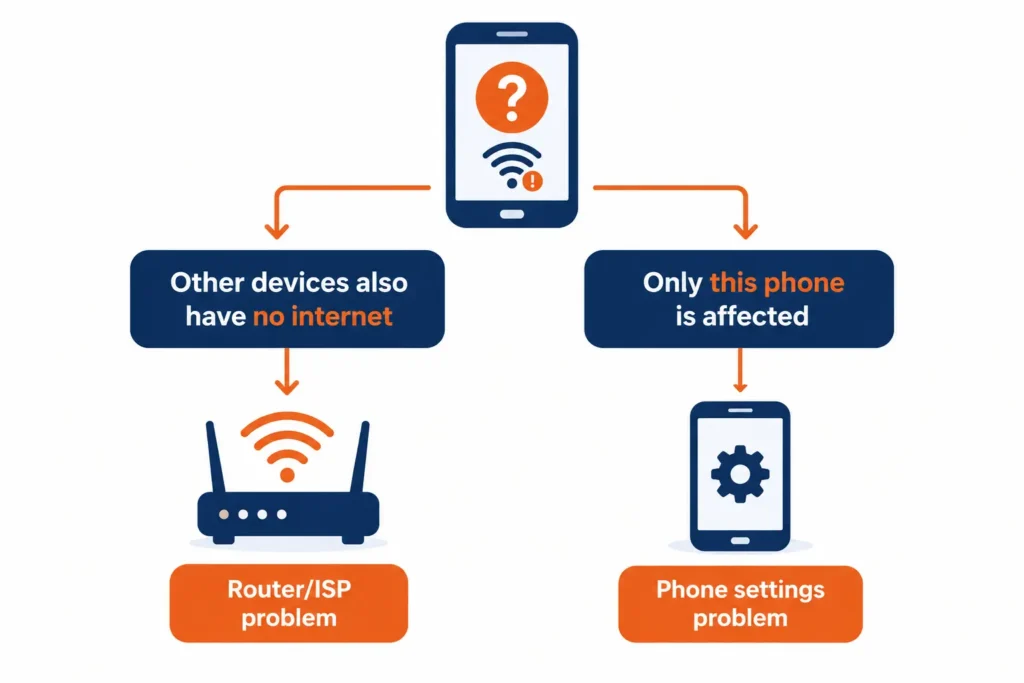
Before touching any settings, connect a second device another phone, a tablet, or a laptop to the same Wi-Fi network.
- If the other device also has no internet: the problem is with your router or your broadband connection, not your phone. Skip ahead to Part 2.
- If the other device works fine: the issue is specific to your phone’s settings. Start with Part 1 below.
Part 1: Fixes for Your Phone
Try these in order. Each one is safe and doesn’t touch your files, photos, or apps.
1. Toggle Airplane Mode
Turn Airplane Mode on, wait about 10 seconds, then turn it off. This forces your phone to drop and rebuild its Wi-Fi connection from scratch, which clears many temporary glitches without any other changes.
2. Check That Date & Time Are Set Automatically
Go to Settings > System > Date & time (the exact wording varies slightly by phone brand) and make sure “Set time automatically” is turned on. If your phone’s clock is off, secure websites can fail their certificate checks, which can look exactly like a “no internet” problem even though the connection itself is fine.
3. Check and Turn Off Private DNS
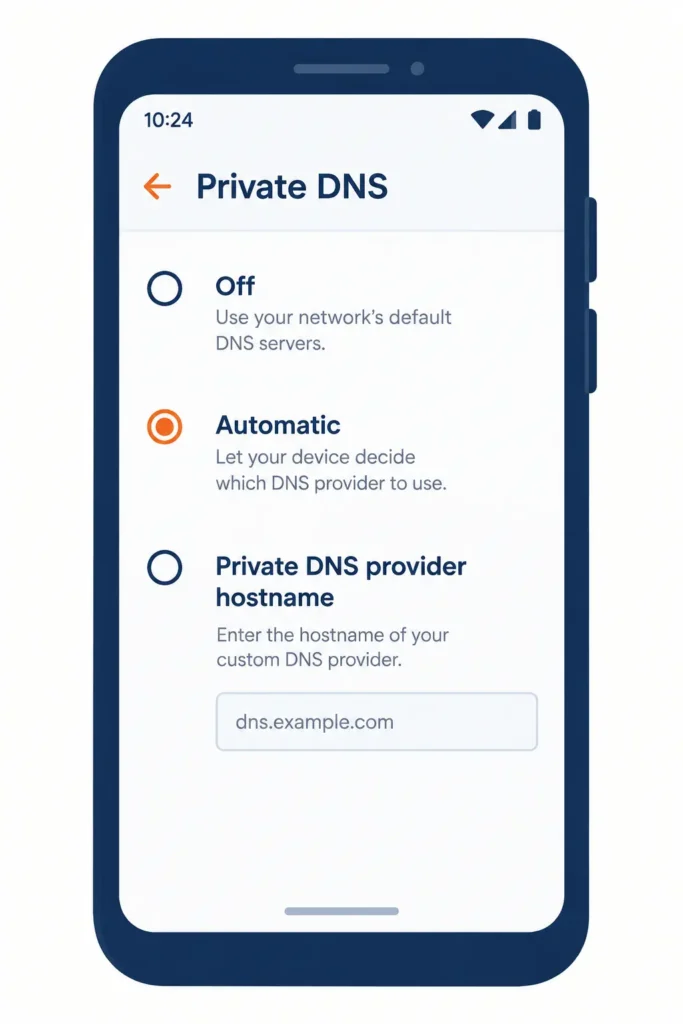
If you or an app has set a custom Private DNS address (sometimes used for ad-blocking, like AdGuard or NextDNS), and the current Wi-Fi network blocks that connection, your phone can fail to resolve any website at all even though the network itself is working.
To check: go to Settings > Network & internet > Private DNS (path may vary by brand). If it’s set to a specific provider hostname, switch it to Automatic or Off and see if the connection recovers.
4. Disconnect Any Active VPN
If you have a VPN app running especially one with an “always-on” or “kill switch” feature it can silently block all traffic the moment its tunnel drops, while your phone still shows as connected to Wi-Fi. Open the VPN app and disconnect it, or go to Settings > Network & internet > VPN and turn off “Always-on VPN” / “Block connections without VPN,” then test your connection again.
5. Forget the Network and Reconnect
Go to your Wi-Fi settings, tap on the network you’re connected to, and select Forget. Then reconnect and re-enter the password. This clears out a stored connection profile that may have picked up a bad IP address or an outdated configuration.
6. Switch From Randomized MAC to Phone MAC
Since Android 10, phones generate a different, randomized hardware address (MAC address) for each Wi-Fi network by default, mainly for privacy. Some routers with MAC filtering or a small pool of available IP addresses don’t handle this well, and end up refusing the connection or failing to assign a working IP address.
To check: tap your network’s settings (usually a gear icon next to the network name), look for MAC address type, and switch it from Randomized MAC to Phone MAC (also called “Device MAC” on some phones). Reconnect afterward.
Part 2: Fixes for Your Router and Broadband Connection
If the isolation check above showed that other devices are also affected, the problem is upstream of your phone.
7. Check Your Router’s Status Lights
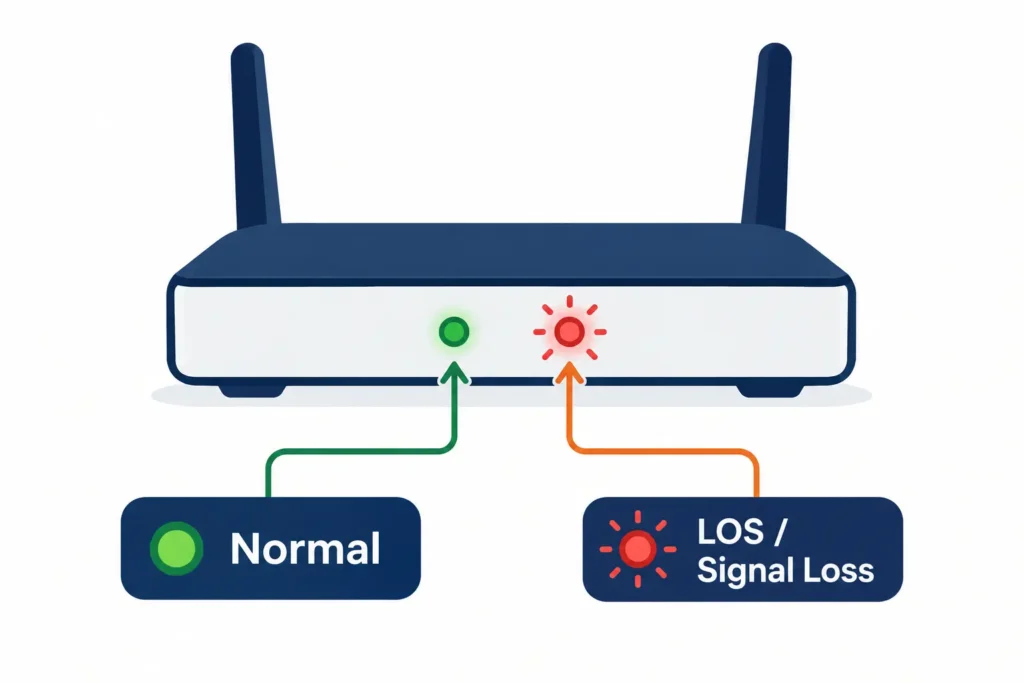
Most home broadband routers in India including JioFiber and Airtel Xstream Fiber units have a status LED that tells you whether the fiber signal itself is healthy.
- Solid green light: the fiber connection is fine; the issue is likely elsewhere.
- Blinking or solid red light (often labeled LOS, for “Loss of Signal”): the optical fiber line has a physical problem commonly a sharp bend in the thin fiber cable near the wall socket or router. This is not something you can fix by changing phone settings; it needs an ISP technician visit.
8. Restart the Router the Right Way
Power off the router (and separate ONT/modem, if you have one) completely, wait a full 60 seconds, then power it back on. A quick unplug-replug often isn’t enough time for the equipment to fully drop its session with the ISP and re-establish it cleanly.
9. Check Your Plan Status and Run Diagnostics in Your ISP’s App
An expired prepaid plan or an exhausted Fair Usage Policy (FUP) limit can cause your ISP to redirect all your traffic to a recharge page which Android often reports as “no internet” rather than showing you that page directly.
- JioFiber: Open the MyJio app and use JioCare > Run Diagnostics to check your line and account status, or call 1800-896-9999 (24/7).
- Airtel Xstream Fiber: Check the Airtel Thanks app for outage alerts in your area, or call 121 (also reachable from a non-Airtel number) for broadband support.
- BSNL FTTH: Call 1800-345-1500 (from any other operator’s number) or 1800-4444 for call/WhatsApp support on landline and FTTH issues.
Part 3: Public Wi-Fi and Deeper Fixes
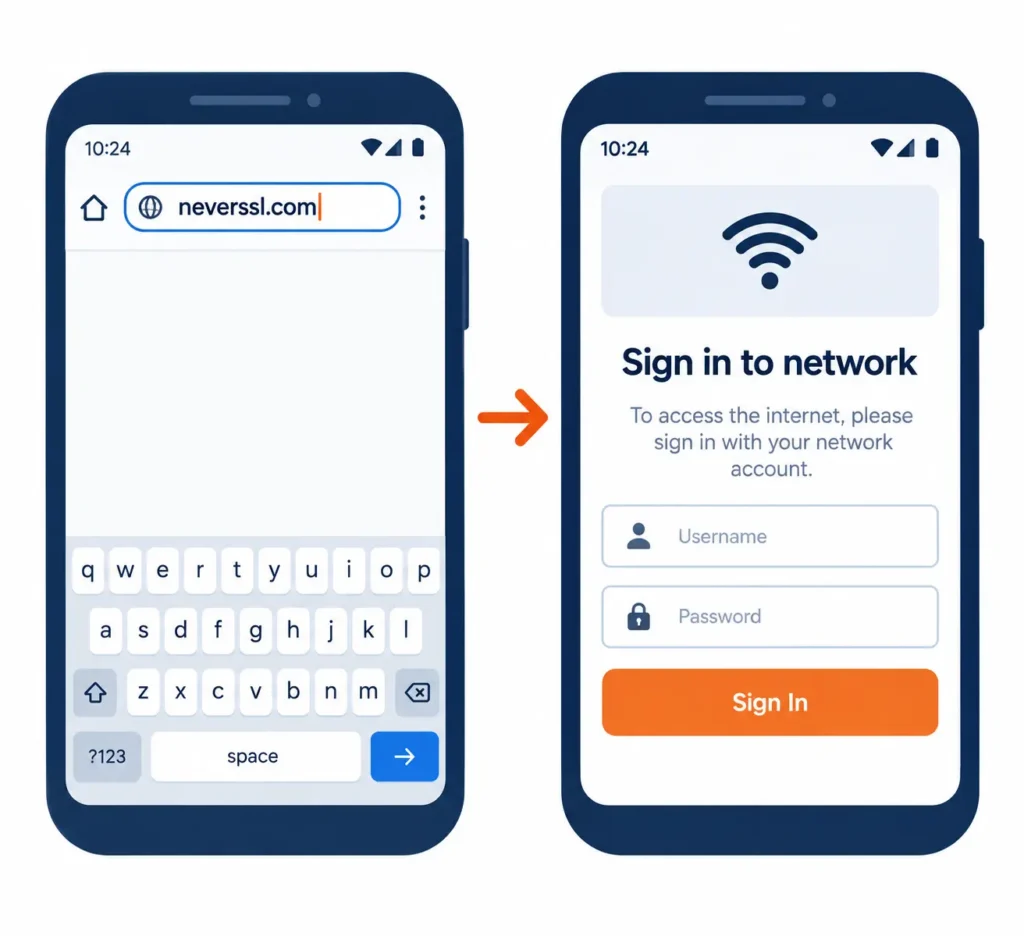
10. Force Open a Stuck Login Page on Public Wi-Fi
Airport, hotel, and café Wi-Fi networks often require you to accept terms or log in through a browser page (called a captive portal) before granting internet access. Sometimes this page fails to pop up automatically, leaving your phone connected to the Wi-Fi but stuck without real access.
To force it open, connect to the network, then open your browser and manually type in a plain, non-secure address such as http://neverssl.com. Because this page doesn’t use HTTPS, most captive portals will intercept the request and redirect you to their login or terms page.
Bonus Fix: Reset Network Settings
If none of the steps above worked, resetting your network settings clears out corrupted Wi-Fi, mobile data, and Bluetooth configurations at once. This is more thorough than “Forget network” alone.
Before you do this: resetting network settings does not delete your photos, apps, messages, or any files. It only clears saved Wi-Fi passwords, mobile network preferences, and paired Bluetooth devices you’ll just need to reconnect to Wi-Fi and re-pair Bluetooth devices afterward.
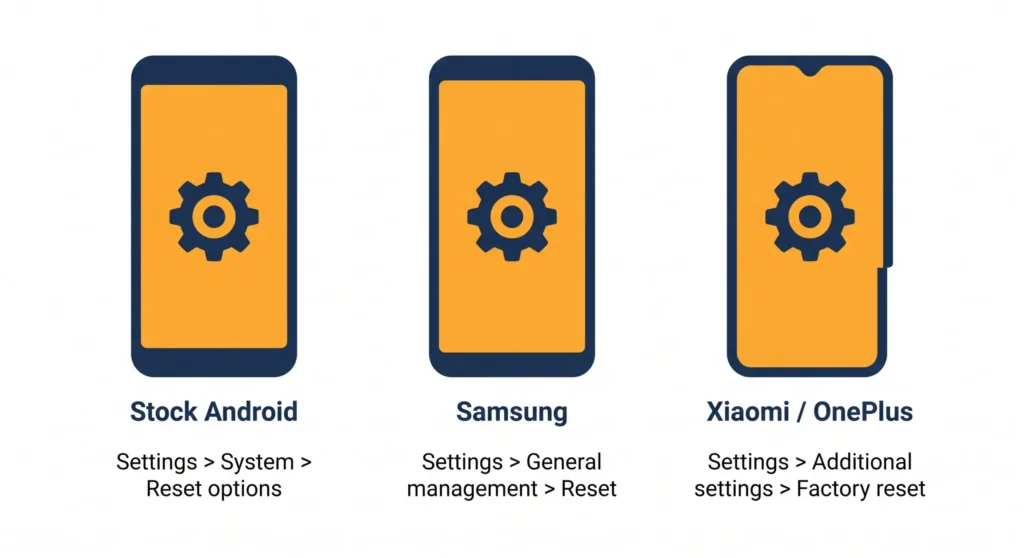
Menu paths vary by phone brand:
| Phone Brand | Where to Find It |
|---|---|
| Stock Android (Pixel, Motorola, Nothing) |
Settings
›
System
›
Reset options
›
Reset Wi-Fi, mobile & Bluetooth |
| Samsung (One UI) |
Settings
›
General management
›
Reset
›
Reset Wi-Fi and Bluetooth settings |
| Xiaomi / Redmi / POCO (HyperOS / MIUI) |
Settings
›
More connectivity options
›
Reset Wi-Fi, mobile networks and Bluetooth |
| OnePlus / Oppo / Realme (OxygenOS / ColorOS) |
Settings
›
System settings (or Additional settings)
›
Backup and reset
›
Reset network settings |
Menu wording can shift slightly between software versions, so if you don’t see the exact option listed, search your phone’s Settings app for “reset network” or “reset Wi-Fi.”
When to Contact Your ISP or Visit a Service Center
Contact your ISP if:
- Other devices on the same network also have no internet.
- Your router’s LOS light is red or blinking.
- You suspect your plan has expired or you’ve hit a data/FUP limit.
Consider a service center if:
- Only your phone is affected, across multiple different Wi-Fi networks (not just one).
- A full network settings reset didn’t fix it.
- You see the same problem on mobile data too, which points to a deeper software or hardware issue.
Frequently Asked Questions
Will resetting network settings delete my photos or apps?
No. It only clears saved Wi-Fi networks, mobile data preferences, and Bluetooth pairings. Your photos, messages, downloaded files, and installed apps are untouched.
Why does this only happen on Wi-Fi, and mobile data works fine?
That points to something specific to your Wi-Fi setup rather than your phone’s overall network hardware: most often Private DNS, a stored network profile, or the router/broadband line itself, rather than a general connectivity fault.
Is it safe to manually set a static IP address to fix this?
It can work as an advanced, temporary test, but it’s easy to get wrong. Routers use different default address ranges (for example, some JioFiber routers use 192.168.29.1, while others use 192.168.1.1 or 192.168.0.1), and entering a static IP that doesn’t match your router’s actual range will break the connection completely. If you’re not sure of your router’s gateway address, it’s safer to stick with the fixes above.
Why did this start right after a software update?
Major Android updates occasionally leave behind a stale network cache that causes exactly this symptom on an otherwise-working Wi-Fi network. A network settings reset (see the bonus fix above) is usually the most reliable way to clear it.
Conclusion
“Wi-Fi connected but no internet” almost always comes down to one of two things: a setting on your phone (Private DNS, a stuck network profile, a VPN, or a randomized MAC address), or a problem upstream on your router or broadband line. The isolation check at the start of this guide tells you which one you’re dealing with in under a minute, so you’re not stuck guessing or resetting things that don’t need resetting.