

Why Your Phone Says “Emergency Calls Only” (And How to Fix It)
If your phone suddenly shows “Emergency Calls Only” instead of your carrier’s name, you’re dealing with one of the most common mobile network errors out there. In most cases it’s something you can fix yourself in a few minutes, without a trip to a service center.
This guide covers what causes the error, quick fixes to try first, separate Android and iPhone walkthroughs, carrier-specific issues, and what to do if nothing here works.
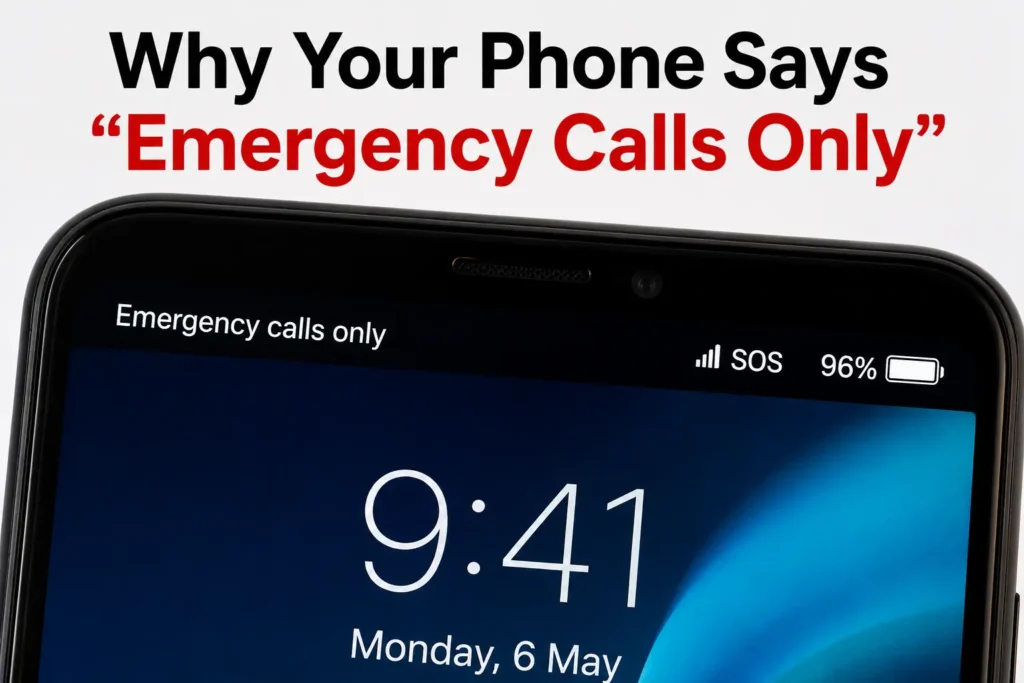
Before we get into the fixes, here’s the one-line version: “Emergency Calls Only” usually means your phone can’t connect to your regular mobile network. Your phone can still dial emergency numbers, but normal calls, text messages, and mobile data won’t work until that connection is restored.
Quick Fixes (Try These First)
If you’re in a hurry, here’s the order to try these in, quickest first:
- Restart your phone
- Turn Airplane Mode on, wait 15 seconds, then turn it off
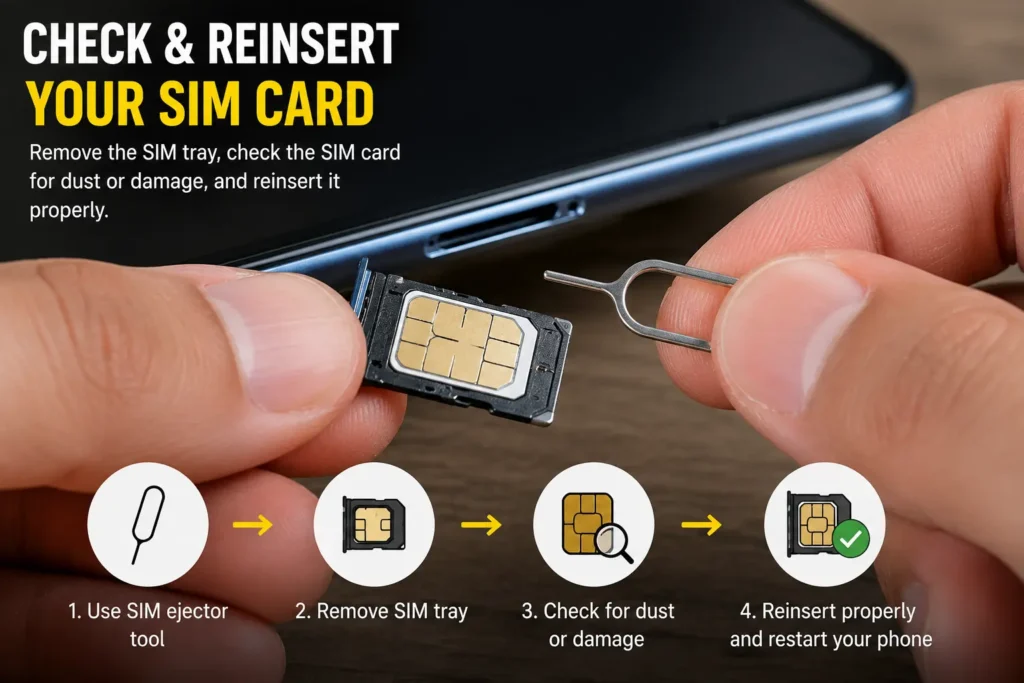
- Check and reseat your SIM card
- Check your mobile network settings
- Select your network manually instead of automatically
- Check for a carrier outage in your area
- Turn off 5G and switch to LTE/4G only
- Reset network settings
- Update your phone’s software
- Test your SIM card in another phone
- Check your account and billing status
- Contact your carrier directly
I’ll walk through each of these in more detail below, plus dedicated sections for Android, iPhone, specific carriers, and trickier situations like a new SIM or a brand-new phone that won’t register at all.
What Does “Emergency Calls Only” Mean?
Here’s the simple version. Your phone has lost its connection to your own network provider Jio, Airtel, Vi, Verizon, AT&T, EE, whichever carrier you’re on but its cellular radio is still alive and picking up a signal from some other carrier’s tower nearby.
Most countries legally require every mobile network to accept emergency calls (911, 112, or 999, depending on where you are) from any phone in range, even if that phone has no SIM, no active plan, or belongs to a completely different carrier. Your phone borrows a sliver of that emergency-only access from whatever tower it can reach, even though it can’t do anything else on that network.
This is different from “No Service,” which means your phone can’t detect any signal at all, from any carrier. So if you’re seeing “SOS Only” on an iPhone or “Emergency Calls Only” on Android, the good news is your hardware is working. Something is just breaking the proper handshake between your phone and your own carrier.
Why Does My Phone Say Emergency Calls Only?
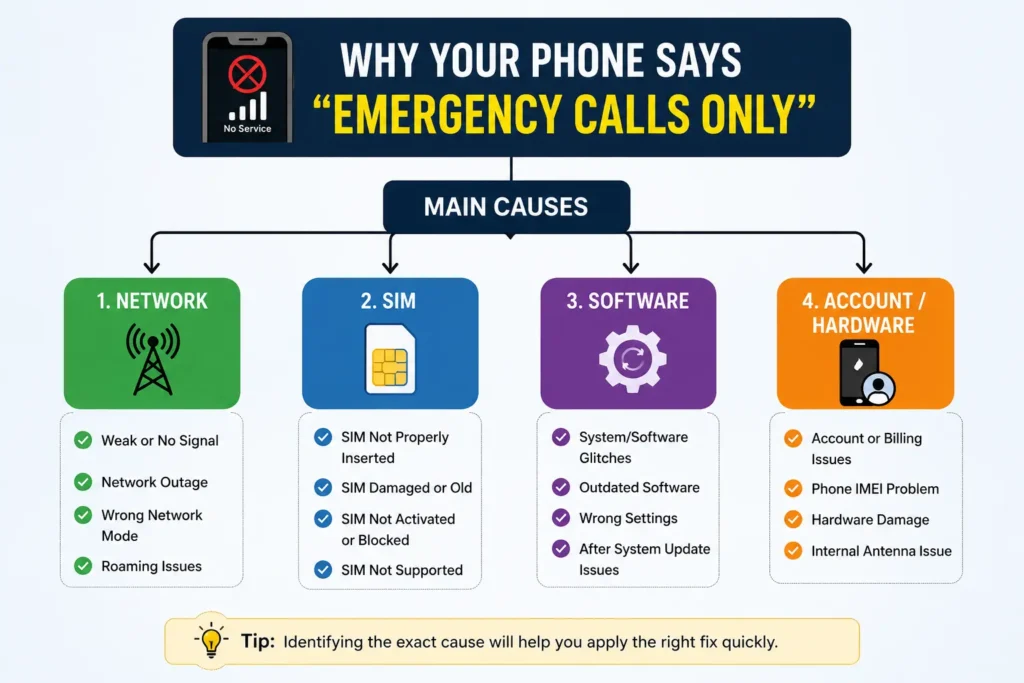
The causes almost always fall into one of five categories.
Your carrier is having a bad day. Towers go down for maintenance or upgrades all the time, usually with zero warning. This can happen during a network-wide SIM authentication rollout, where phones temporarily drop into emergency mode until the update finishes. Crowded venues make it worse too: when thousands of phones compete for the same tower, regular authentication can get bumped while the tower keeps just enough capacity free for emergency calls.
Something’s off with your SIM. A physical SIM that’s slightly out of alignment, or one with dust and light oxidation on the gold contacts, can stop talking properly to your phone’s logic board. Popping the SIM out, wiping the contacts with a soft, dry cloth, and reseating it resolves this in many cases. eSIMs have their own version of this the profile can fail to fully download or activate without throwing an obvious error.
A software update broke something. This is probably the single most common trigger, and it lines up with what carriers and phone makers openly document too. After a big OS update a new One UI version, a major Android release, a new iOS version the baseband firmware (the part of your phone that actually talks to cell towers) can fall out of sync with what your carrier expects. Your phone reads the SIM fine; it just can’t finish the handshake.
Your account or roaming is restricted. An overdue bill, a flagged account, or roaming switched off while traveling can all get your SIM quietly rejected by the network, even though your phone still physically detects it.
Hardware wear and tear. The least common cause, but it happens, especially on older phones. A modem chip can develop micro-fractures or degrade with heat, which affects its ability to hold onto higher-frequency bands while still catching the low-frequency emergency-only bands. If nothing software-related works, keep this in the back of your mind.
How to Fix Emergency Calls Only on Android
Work through these in order, easiest first — most people find the issue resolves within the first few steps.
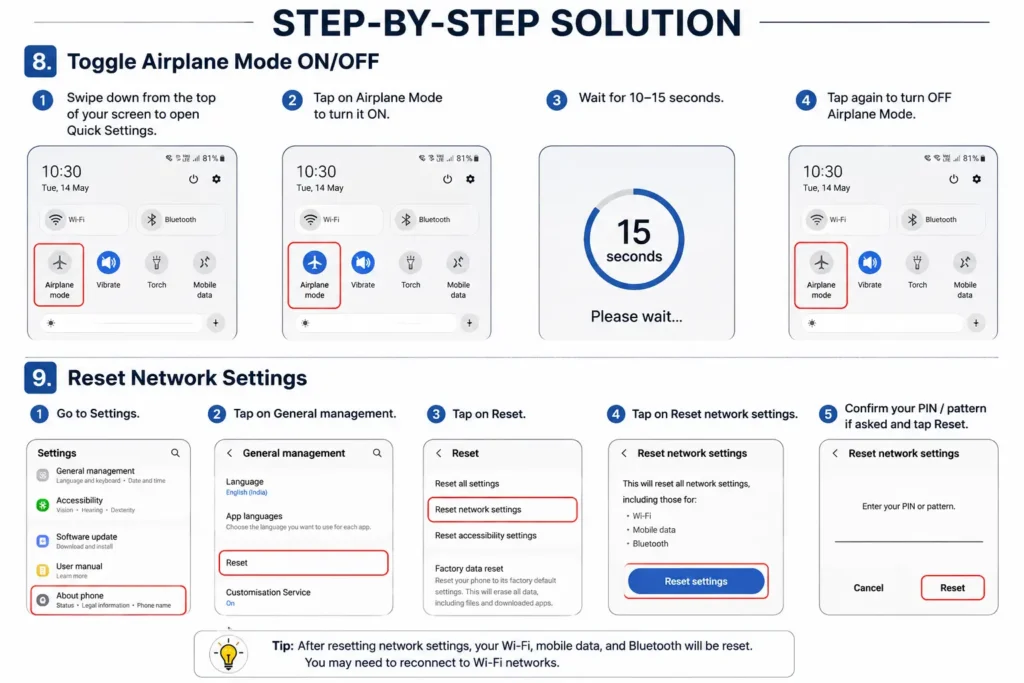
1. Toggle Airplane Mode. This solves it more often than anything else on this list. Swipe down to Quick Settings, tap Airplane Mode on, wait about 15 seconds, then tap it off again. This wipes your phone’s current network registration and forces a fresh scan for towers.
2. Restart your phone. If Airplane Mode doesn’t cut it, a full restart clears RAM and relaunches the background services responsible for SIM authentication.
3. Reseat your SIM card. Power off completely, use a SIM tool or straightened paperclip to pop the tray out, check the gold contacts for dust or smudges, wipe gently with a dry microfiber cloth, and slot it back in properly.
4. Select your network manually. Go to Settings > Connections > Mobile Networks > Network Operators, turn off “Select automatically,” wait for the list to populate, and choose your carrier by hand. Your phone sometimes locks onto a broken tower on its own; picking manually forces it to look again.
5. Turn off 5G temporarily. Go to Settings > Connections > Mobile Networks > Network Mode, and switch from 5G/LTE/3G/2G down to LTE/3G/2G only. It sounds like a downgrade, but a lot of “emergency calls only” cases trace back to phones struggling to register on 5G Standalone networks.
6. Clear the SIM Toolkit cache. SIM Toolkit is the background app that manages the handshake between your OS and your SIM chip. Go to Settings > Apps, turn on “Show system apps,” find SIM Toolkit, force stop it, then clear its cache and data. Restart afterward.
7. Reset network settings. I hold this one back until everything else fails, since it wipes saved Wi-Fi passwords and Bluetooth pairings (not your photos or files). Go to Settings > General Management > Reset > Reset Mobile Network Settings. I’ve written a longer walkthrough on this specific step at fixmydaily.com/reset-network-settings-guide if you want more detail before committing to it.
Brand-Specific Android Fixes
Samsung Galaxy: Try clearing the system cache partition power off, hold Volume Up + Power to enter recovery mode, go to “Wipe Cache Partition,” confirm, and reboot. On dual-SIM Galaxy phones, moving your SIM from Slot 1 to Slot 2 can force the phone to rebuild its network profile from scratch.
Xiaomi, Redmi, and POCO: Dial ##4636## to open the hidden engineering menu, tap Phone Information, and change “Set Preferred Network Type” to force a wider spectrum scan.
Oppo, Vivo, and Realme: These brands are notorious for aggressive battery optimization that quietly restricts background modem activity. Go to Settings > Mobile Network > Advanced Settings and turn off any automatic restrictions on the network module.
OnePlus and Motorola: On OnePlus, go to Settings > Mobile Network > Access Point Names, tap the menu icon, and select “Reset APNs to Default.” On Motorola, check Settings > System > Advanced > Reset Options > Reset Mobile Network Settings.
How to Fix Emergency Calls Only on iPhone
iPhones label this “SOS Only” instead of “Emergency Calls Only,” but it’s the exact same underlying problem.
Start with Airplane Mode: turn it on, wait 15 seconds, then turn it off again same as on Android. If that doesn’t work, restart the phone completely.
Next, connect to Wi-Fi and check Settings > General > About. If there’s a pending carrier settings update, you’ll get a prompt asking whether to install it. Always say yes this is Apple and your carrier pushing exactly the kind of fix that resolves handshake issues after an iOS update.
Go to Settings > Cellular > Network Selection, turn off Automatic, and manually pick your carrier from the list the same idea as manual network selection on Android.
If you’re traveling, double-check Settings > Cellular > Cellular Data Network to make sure your APN details match what your roaming provider or local carrier actually gave you. A mismatched APN here is a very common reason for SOS Only while abroad.
If you’re on an eSIM, open Settings > Cellular and confirm the eSIM shows as active. eSIM profiles occasionally get stuck mid-activation, especially right after switching phones, and the fix is usually to remove the cellular plan and re-add it through the QR code or carrier app your provider gave you.
Last resort: Settings > General > Transfer or Reset iPhone > Reset > Reset Network Settings. Same trade-off as Android you’ll lose saved Wi-Fi passwords, not your photos or data.
Full Bars but Emergency Calls Only: Why?
This one trips people up more than any other version of the problem. You look at your status bar, see four or five bars of signal, and assume everything should be working. Then you try to make a call and get bumped straight to Emergency Calls Only.
Here’s what’s actually going on. Signal bars measure raw radio strength how strongly your phone can hear the nearest tower. They don’t measure whether your phone has actually been authenticated and registered on that network. A phone can hold a strong signal from a tower and still fail the deeper registration step (what carriers call IMS registration) that’s needed for calls, texts, and data to actually work. When that registration fails, you end up with full bars sitting right next to Emergency Calls Only, because the phone is happily reading signal strength from a tower it hasn’t properly registered with.
The usual suspects behind this exact combination are a VoLTE or Wi-Fi Calling toggle that’s gotten stuck, a SIM authentication key that expired or was never provisioned correctly, or an account-level restriction your carrier applied without a very obvious warning. Manual network selection and a full SIM reseat (both covered above) fix this more often than any other trick I’ve tried, because both force the phone to run the registration handshake again from scratch instead of just re-reading signal strength.
How to Turn Off Emergency Calls Only
There isn’t a literal switch labeled “Emergency Calls Only” you can flip off it’s a status your phone displays automatically when it fails to register on your carrier’s network, and it clears itself the moment registration succeeds again. So “turning it off” really means fixing the underlying registration problem.
If you only have time for two things, do these: toggle Airplane Mode for 15 seconds, and if that doesn’t work, manually select your network instead of leaving it on automatic. Between those two, most people who see this message get it resolved without needing anything else on this list. Everything else in this guide the SIM reseat, the 5G toggle, the network reset exists for the cases where those two quick moves don’t cut it.
Emergency Calls Only After Changing SIM Card
Swapping in a new SIM and immediately seeing Emergency Calls Only is one of the most common versions of this problem.
A few things are usually going on. New SIMs sometimes need a short activation window on the carrier’s side anywhere from a few minutes to a couple of hours before the network fully recognizes them, even though the phone reads the card just fine. Your phone also might not have picked up the correct APN (Access Point Name) settings automatically, especially if you switched carriers rather than just replacing a damaged SIM from the same one. And if you moved the SIM into an unlocked or previously used phone, that phone’s IMEI number may need to be registered against your new SIM before the network fully lets it through some carriers handle this instantly, others take a little time.
Give it 15–30 minutes before troubleshooting anything, since a lot of these resolve on their own. If it’s still stuck after that, run through Airplane Mode, a reseat, and manual network selection before assuming something’s actually broken.
Emergency Calls Only on a New Phone
A brand-new phone showing Emergency Calls Only right out of the box is its own particular headache, because it’s easy to assume the phone itself is faulty when it usually isn’t.
If you bought the phone unlocked, the most common cause is that its IMEI hasn’t been registered with your carrier’s network yet, which typically needs to happen through your carrier’s app, website, or a quick call to support. If you bought it secondhand, it’s worth checking that the IMEI isn’t blacklisted a quick search on your carrier’s site or a free IMEI checker confirms this in seconds. Band compatibility is the other big one: not every phone sold globally supports every 5G band a given carrier uses, particularly newer 5G Standalone bands, so a phone imported from another region can technically work everywhere except on your specific network’s core bands.
On a genuinely new device, also make sure you’ve completed the SIM or eSIM activation flow your carrier sent you, since an incomplete activation looks identical to a network problem from the phone’s side.
Emergency Calls Only Because of a Network Outage
Sometimes this really is your carrier’s fault, not your phone’s.
The fastest way to check is a site like Downdetector, or your carrier’s own network status page or app, which most major carriers now maintain. Calling your carrier’s support line from a different phone, checking their social media support account, or simply asking someone nearby on the same carrier whether their phone is working too can all confirm it in under a minute. If it is a wider outage, there’s genuinely nothing on your end to fix Wi-Fi Calling, if you have it enabled and a working internet connection, is your best workaround for calls and texts until service comes back.
When to Contact Your Mobile Carrier
I’d rather you not spend an hour resetting settings that were never going to fix the actual problem. Call your carrier, or use their app’s live chat, once any of these apply: you’ve gone through the fixes above and nothing’s changed after 20–30 minutes, you suspect a billing or account issue is blocking your line, an outage has lasted more than a couple of hours in your area, a new SIM or eSIM still won’t activate after half an hour, or you suspect your phone’s IMEI is blocked or unregistered. Your carrier can see things from their side account status, tower health, IMEI registration that you simply can’t check from the phone itself.
Carrier-Specific Problems
A good chunk of the people searching for this exact error are dealing with it on a specific network, so here’s what’s worth knowing if you’re on one of these.
US Cellular Emergency Calls Only
If you were a UScellular customer, this is worth knowing: T-Mobile completed its acquisition of UScellular’s wireless operations in August 2025, and UScellular customers are being migrated onto T-Mobile’s network in phases over roughly two years. If you’re seeing Emergency Calls Only and you’re a former UScellular subscriber, check whether your account or phone has already been moved onto T-Mobile’s network, since older devices without full support for T-Mobile’s specific bands can run into exactly this kind of registration failure mid-transition. T-Mobile’s support pages for the UScellular transition are the most reliable place to confirm your account’s current status.
T-Mobile Emergency Calls Only
T-Mobile shut down its legacy 3G and older CDMA-based networks (including the former Sprint network) back in 2022, and phones that were never updated for VoLTE (Voice over LTE) can still run into registration problems today. If you’re on an older or budget device, confirm VoLTE and Wi-Fi Calling are both turned on in your network settings, since T-Mobile increasingly relies on both for basic call functionality.
Spectrum Mobile Emergency Calls Only
Spectrum Mobile is a mobile virtual network operator that runs on Verizon’s network rather than owning its own towers, so most Emergency Calls Only issues here trace back to the same causes as a direct Verizon problem SIM authentication, account status, or a local Verizon tower issue. Spectrum also automatically offloads data onto its own Wi-Fi hotspot network when you’re near one, and that handoff can occasionally confuse a phone’s registration status. Toggling Airplane Mode or manually forcing cellular data (rather than Wi-Fi) usually clears it.
O2 Emergency Calls Only (UK)
O2 runs its own dedicated network in the UK, separate from EE. If you’re seeing this on O2, check their online network status checker first, since localized outages are common enough that they maintain a live map for it. A SIM reseat and manual network selection solve most of the rest.
EE Emergency Calls Only (UK)
EE operates the UK’s largest 4G and 5G network and is owned by BT. EE also runs its own live coverage and status checker worth checking before anything else. If your issue started right after an iOS or Android update, a pending carrier settings update (covered in the iPhone section above) is worth checking specifically, since EE pushes these fairly often.
AT&T Emergency Calls Only (US)
Like T-Mobile, AT&T shut down its 3G network in February 2022, which stranded some older devices that never got a VoLTE-capable software update. If you’re on AT&T and this started suddenly on an older phone, check whether VoLTE / HD Voice is enabled in your network settings, and confirm the device is on AT&T’s supported devices list.
When It’s Actually Your Carrier’s Fault, Not Your Phone’s
Sometimes you’ll see full signal bars right alongside the “Emergency Calls Only” message. That’s not your imagination it usually means your phone is reading signal strength from a competing carrier’s tower, not actually connecting to your own network’s data band.
If this happens and none of the fixes above work, it’s worth calling your carrier’s support line from another phone, or checking their outage map online, before you spend more time troubleshooting on your end.
If nothing else in this guide has worked and your SIM card is unusually old, it’s worth asking your carrier for a free replacement. Very old SIMs can occasionally have compatibility issues with newer network requirements, and a replacement is a low-cost step to rule out.
What If Nothing Works?
If you’ve gone through every step above and you’re still staring at “Emergency Calls Only,” there are two possibilities left. Either there’s a genuine outage in your area that only your carrier can fix, or you’re dealing with a hardware issue particularly if this started right after a physical drop or water exposure. In that case, it’s worth having a certified technician check the modem and antenna connections rather than continuing to try software fixes.
I know that’s not the answer anyone wants to hear, but it’s an honest one, and better than wasting hours resetting settings that were never going to fix a cracked antenna cable.
Final Thoughts
“Emergency Calls Only” looks scary the first time you see it, especially if you’re waiting on an important call or trying to use maps while traveling. But based on what carriers and phone makers openly document it’s rarely a permanent problem. Nine times out of ten, an Airplane Mode toggle, a SIM reseat, or a network settings reset gets you back to normal within a few minutes. If you’ve worked through everything here and you’re still stuck, it’s genuinely time to loop in your carrier or a technician rather than keep guessing.
Frequently Asked Questions
Find quick, authoritative answers to common troubleshooting questions and service inquiries.
Why does my phone say Emergency Calls Only with full bars?
Signal bars indicate raw radio reception from the nearest cellular tower, but not network authentication. If your phone cannot complete the cryptographic handshake with your specific carrier, it will display signal strength while restricting network access to emergency calls only.
How do I remove the Emergency Calls Only status?
The status clears automatically once authentication succeeds. You can force a network renegotiation by enabling Airplane Mode for 15 seconds, reseating your physical SIM card, or manually selecting your carrier under Settings > Mobile Network > Network Operators.
Why does a newly activated device show this error?
New activations often encounter propagation delays on carrier provisioning servers. Other common causes include pending IMEI whitelisting, incomplete eSIM profile installation, or frequency band incompatibilities on unlocked international hardware.
Can physical SIM card wear trigger connection drops?
Yes. Surface oxidation, microscopic scratches, or debris on the gold contact pads can intermittently sever data transfer between the SIM IC and the baseband processor. Cleaning the contacts gently with an eraser or replacing an aged card resolves physical detection faults.
Does resetting network settings erase personal data?
No. Resetting network configurations only flushes stored Wi-Fi profiles, paired Bluetooth peripherals, VPN configurations, and APN settings. Your personal files, photos, applications, and account databases remain completely untouched.