

If your iPhone apps have started crashing right after an iOS update, you’re not imagining it this is a common issue that shows up after nearly every major iOS release. Your iPhone apps keep crashing after an iOS update, and it’s honestly one of the most annoying things that can happen right after you’ve updated your phone, because you expect things to work better, not worse.
This is usually fixable without losing any data. In this guide, we’ll walk through what’s causing it and how to fix it, starting with the easiest steps and working up to the more advanced ones.
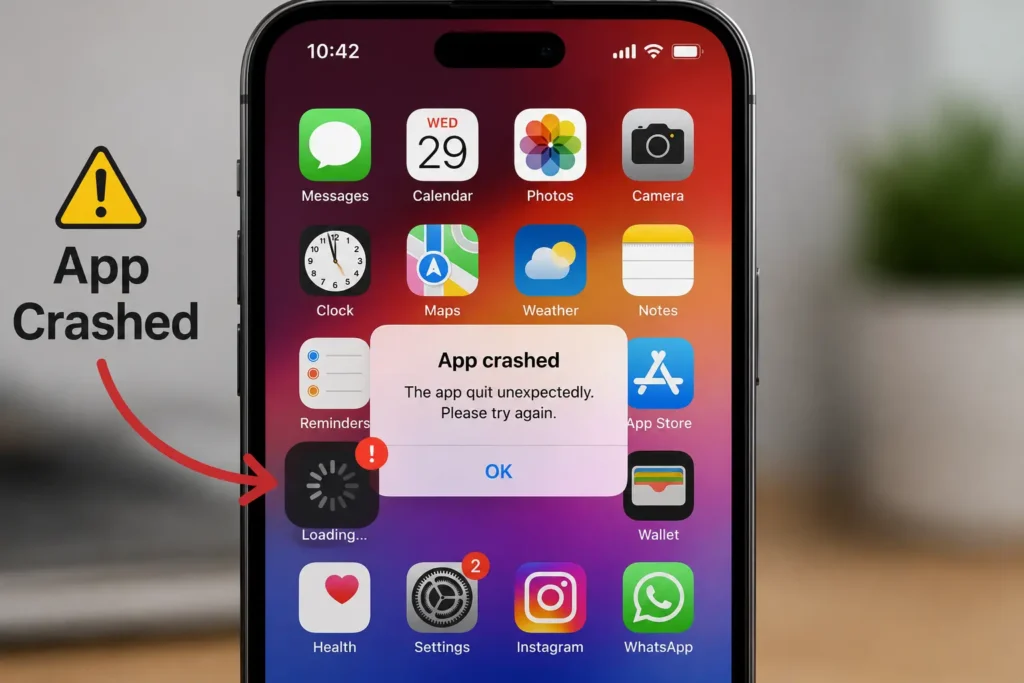
Why Do iPhone Apps Crash After an iOS Update?
Before jumping into fixes, it helps to understand why this happens in the first place. I’m not going to drown you in technical jargon, but a little context makes the fixes make more sense.
Every time Apple rolls out a big iOS update, it doesn’t just change how things look. It also changes things happening deep inside the system how apps talk to the operating system, how memory is managed, and how app data is stored. When an app hasn’t been updated by its developer to match these changes, or when your phone’s cache and storage get a little messy during the update process, apps can start behaving badly.
Here’s what’s usually going on behind the scenes:
The app itself is outdated. If a developer hasn’t updated their app to work properly with the new iOS version, the app might try to use a feature or process that no longer works the same way. This is one of the most common reasons an app closes immediately on iPhone right after an update.
Your phone’s memory is under pressure. New iOS versions often use more background resources. If your phone is low on available memory, iOS will start shutting down apps to free up space sometimes right as you’re trying to use them.
Cache or app data got corrupted during the update. Apps store little bits of data (login sessions, preferences, temporary files) on your phone. If this data gets mixed up during the update process, the app can crash trying to read it.
Your storage is nearly full. iPhones need a decent amount of free space to run smoothly, especially right after an update when the system is still finishing background tasks like re-indexing photos and rebuilding search data.
It’s also worth knowing that a crashing app isn’t the only odd thing an update can trigger. Some phones suddenly show Emergency Calls Only instead of full signal, or stop charging properly, right after the same update. These are usually separate, unrelated glitches not a sign your phone is failing and each one has its own straightforward fix.
Once you understand that it’s usually one of these four things, the fixes below start to make a lot more sense.
Restart iPhone
This sounds almost too simple, but a regular restart clears out a lot of small glitches that build up, especially right after a big software update. Go to Settings > General > Shut Down, slide to power off, wait about 30 seconds, then turn your phone back on by holding the side button.
If a plain restart doesn’t help and the phone or an app feels properly stuck not just misbehaving a force restart is the next step. It’s more aggressive than a normal restart and worth trying whenever something feels frozen rather than just glitchy.
- iPhone 8 and newer (including 11, 12, 13, 14, 15, and 16 series): press and quickly release Volume Up, press and quickly release Volume Down, then press and hold the Side Button until the Apple logo appears.
- iPhone 7 and 7 Plus: hold the Side Button and Volume Down button together until the Apple logo shows up.
- iPhone 6s, iPhone SE (1st gen), and older: hold both the Home Button and the Top button together until you see the Apple logo.
Don’t worry about any “slide to power off” message that pops up just ignore it and keep holding the buttons.
Update the App
This step gets skipped way more often than it should. After a major iOS update, developers usually release their own updates within a few days to fix compatibility issues. If you’re still running an old version of the app, it may simply not know how to handle the new iOS yet.
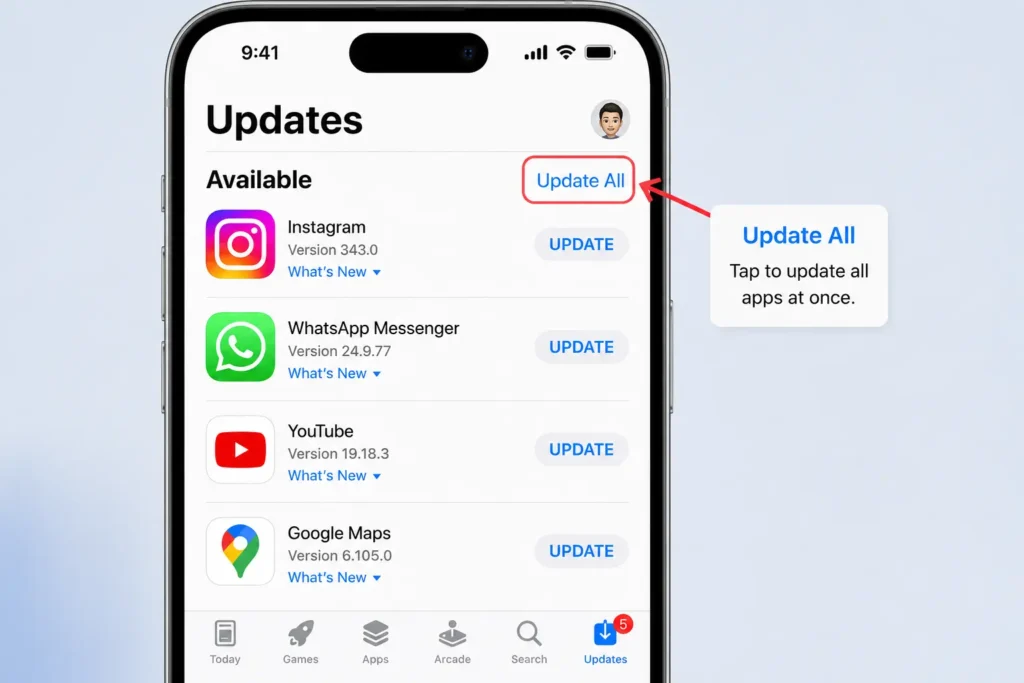
Open the App Store, tap your profile icon in the top right, and pull down to refresh. Scroll to see any pending updates and tap Update All, or update just the specific app that’s been giving you trouble.
It’s a good habit to update all your apps before installing an iOS update it avoids a lot of this mess in the first place.
Update iOS
Here’s something people often miss: sometimes the crash isn’t your app’s fault at all it’s a bug in the iOS version itself. Apple knows this happens, which is why you’ll often see a small follow-up update (something like a .1 or .2 release) show up within a week or two of a major iOS release, specifically to patch bugs that surfaced after the big rollout.
Go to Settings > General > Software Update and check if there’s anything waiting. If there is, tap Update Now, or Update Tonight if you’d rather let it install while you sleep and charge. It’s also worth turning on Automatic Updates here so you’re not stuck waiting on future fixes.
It’s common for apps to keep crashing for a few days after a major iOS release until Apple ships a small patch update that fixes the underlying bug sometimes that patch alone resolves the crashing, with no other changes needed on your end.
Check iPhone Storage
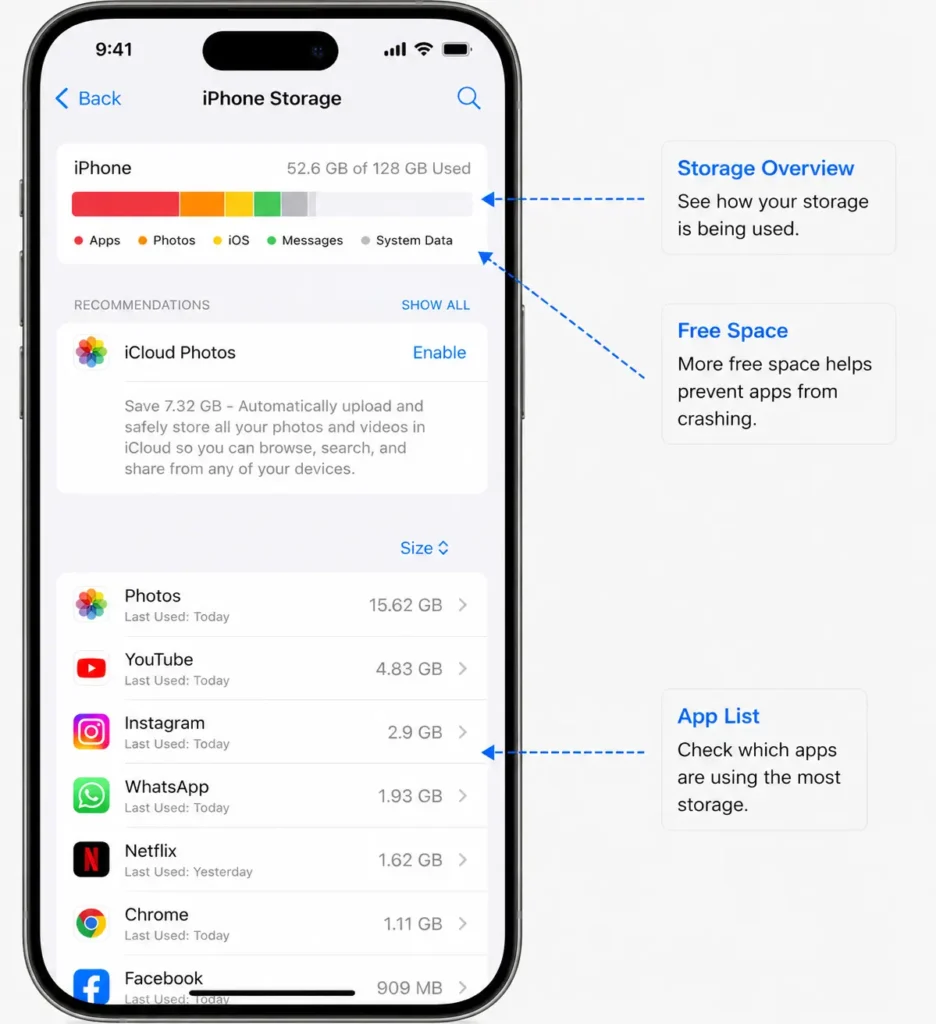
This is a big one, and it’s worth checking whenever apps keep crashing. iOS actually uses your free storage space as a kind of working memory for apps. If your phone is nearly full, apps don’t have room to “breathe,” and they’ll crash more often especially right after an update, when the system is doing extra background work.
Go to Settings > General > iPhone Storage and see where you stand. Aim to keep at least 10 to 15 GB free. If you’re below that, delete apps you don’t use, clear out old photos and videos (or move them to iCloud), and remove large message attachments.
A widely shared but unofficial tip: some users report that if you notice a huge chunk of storage labeled “System Data” or “Other,” going to Settings > General > Date & Time, turning off Set Automatically, and moving the date forward by 3–4 months for about 5 minutes before reverting it can shrink that System Data figure. Apple hasn’t officially confirmed this method or explained why it works, and the storage reduction is often only temporary. It can also carry a real risk: if your Messages app is set to delete conversations after 30 Days or 1 Year, moving the date forward can trigger that deletion early including on your other devices if Messages in iCloud is turned on. If you want to try it, first check that Settings > Messages > Keep Messages is set to Forever, and remember to turn Set Automatically back on afterward.
Force Close and Reopen the App
This one takes about ten seconds and it’s still one of the fastest fixes worth trying first. Force closing an app clears whatever went wrong in its memory and gives it a clean slate to start from.
If you have an iPhone with Face ID (iPhone X or newer), swipe up from the bottom of the screen and pause in the middle until you see your open apps. If your iPhone has a Home Button, just double-click it. Either way, once you see the app cards, swipe up on the one that’s been crashing to close it fully. Wait about ten seconds this matters more than people think, since it gives the system time to actually release the app from memory then reopen it from your home screen.
This simple step alone resolves a surprising number of crash-on-open issues.
Check App Permissions
This one catches people off guard, but it’s more common than you’d think. Sometimes an update resets or re-prompts an app’s permissions, and if the app can’t get the camera, location, photos, or notification access it expects the moment it opens, it crashes instead of just showing an error.
This tends to show up most with banking apps that need location to verify you (they can crash instead of re-prompting), camera apps that lose camera access after an update, and rideshare apps that depend on background location.
To check, go to Settings > Privacy & Security, tap the permission type (Camera, Photos, Location Services, etc.), and make sure the app you’re troubleshooting is switched on. You can also go straight to Settings, scroll down to the app itself, and review every permission it uses in one place. Toggle the relevant permission off and back on, then reopen the app.
Reinstall the App
If nothing above has worked, it’s time for a full deletion. This is more thorough than the fixes above because it wipes the app’s entire local data container, not just the app itself. This is especially effective for streaming apps like YouTube or Spotify, where corrupted downloaded content can be the culprit.
Press and hold the app icon, tap Remove App, then Delete App. To reinstall, open the App Store, tap your profile icon, go to Apps & Purchase History or My Apps, find it under “Not on this iPhone,” and tap the download icon to redownload it.
Just remember unlike offloading (below), this does clear the app’s local data, though anything backed up to your account, like your Instagram login or Netflix watchlist, will still be there once you sign back in.
Offload the App
This is one of the lesser-known fixes, and it’s worth trying before a full delete. Offloading an app removes the app itself from your phone but keeps all your data, logins, and settings safe. When you reinstall it, everything comes right back you just get a fresh copy of the app’s code, which often fixes crashing caused by a corrupted app install.
Go to Settings > General > iPhone Storage, tap on the problem app, and select Offload App. Once it’s done, tap Reinstall App on the same screen.
This is worth trying first for social media apps in particular, since they tend to build up messy cache data over time that can cause trouble right after an iOS update.
Reset Settings
This one sounds scarier than it is. Resetting all settings does not delete your photos, messages, apps, or files. What it does clear is your Wi-Fi passwords, Bluetooth pairings, and some system preferences, which get rebuilt from scratch. This can fix stubborn, system-wide crashing issues that other steps don’t touch.
Go to Settings > General > Transfer or Reset iPhone > Reset > Reset All Settings. Enter your passcode, confirm, and let your phone restart.
You’ll need to reconnect to your Wi-Fi network and re-pair any Bluetooth devices afterward, but that’s a small price for a phone that actually works again.
When the Problem Is an iOS Bug
If you’ve worked through everything above and the crashing is still happening especially across several apps at once, not just one there’s a good chance it’s a genuine bug in that iOS version, not something specific to your phone or a single app.
A quick way to check: search something like “[app name] crashing iOS [version]” on X, Reddit, or the Apple Support Communities. If a lot of other people are reporting the exact same thing right after the same update, it’s almost certainly on Apple’s end, and a fix is usually already on the way (see the “Update iOS” step above this is exactly what those small patch updates are for).
If you’re still stuck and it’s a paid app that’s simply unusable, you can request a refund through Apple directly at reportaproblem.apple.com by signing in with your Apple Account and selecting the option to request a refund.
For everything else, open the App Store, search for the app, scroll down to Ratings & Reviews, and tap App Support to reach the developer directly. Mention your iPhone model, iOS version, and exactly when the crash happens that detail helps them a lot.
As a genuine last resort, before contacting Apple directly, you can reinstall iOS itself through a computer without erasing your data: connect your iPhone to a Mac or PC, put it into Recovery Mode, and when your computer offers Update or Restore, choose Update. This gives your phone a completely fresh copy of iOS while keeping your photos, apps, and files intact.
Category-Specific Troubleshooting Tips
Different types of apps tend to crash for slightly different reasons, so here are a few targeted tips for common categories:
Social media apps (Instagram, TikTok, Facebook) build up huge cache files over time. Offloading and reinstalling usually works best here.
Streaming apps (YouTube, Netflix, Spotify) often crash because of corrupted downloaded or cached media. A full delete-and-reinstall clears this out completely.
Games, especially graphics-heavy ones, can freeze on loading screens after an update because of how they handle graphics processing. Make sure Low Power Mode is off, free up at least 15GB of storage, and reinstall the app.
Preventing This From Happening Next Time
A few habits before every major iOS update can meaningfully cut down on crashes afterward:
Back up your phone first, either to iCloud or your computer. Make sure you have at least 15GB of free storage before updating. Update all your apps before updating iOS, not after. And once the update is installed, leave your phone on Wi-Fi and charging overnight so it can finish its background indexing quietly, instead of competing for resources while you’re using it the next morning.
That overnight window can make a real difference in how smoothly everything runs afterward.
Final Thoughts
Dealing with iPhone apps crashing after an iOS update is frustrating, but it’s rarely a sign of something seriously wrong with your phone. In most cases, the fix is one of the earlier, simpler steps in this list. Start with restarting and updating, work your way through storage, permissions, offloading, and reinstalling if needed, and save Reset Settings and the deeper iOS reinstall for when everything else has failed.
Take it one step at a time, and your apps should be back to normal before you know it.
Related Reads
- Why Your Phone Says “Emergency Calls Only”
- Why Is My Phone Not Charging?
- How to Pay Your Electricity Bill Online in India
- How to Check Wi-Fi Passwords on Android
FAQs: iPhone Apps Crashing After Update
Quick answers to the most common questions about app crashes after an iOS update.
Why do my iPhone apps keep crashing after an iOS update?
Usually it comes down to one of four things: the app hasn’t been updated to work with the new iOS version, your phone’s memory is under pressure, some cached app data got corrupted during the update, or your storage is running low. Start with the easy fixes first — restarting your phone and updating the app usually solves it.
Why does an app close immediately when I tap it?
This is often caused by an outdated app version that hasn’t been adjusted for the new iOS, or by a corrupted launch cache. Try force closing the app and reopening it, then check the App Store for a pending update. If that doesn’t help, offloading and reinstalling the app usually clears it up.
Do I need to update iOS separately from updating my apps?
Yes, and it’s easy to overlook. Updating your apps fixes compatibility on the app’s side, but sometimes the bug is in iOS itself. Apple regularly ships small patch updates within a week or two of a major release specifically to fix issues like this — check Settings > General > Software Update.
Can app permissions really cause a crash?
Yes. If an app can’t get the camera, location, or photo access it’s expecting right when it opens, some apps crash instead of showing a proper error. Checking Settings > Privacy & Security for the affected app is worth doing, especially for banking, camera, and rideshare apps.
What’s the difference between offloading and deleting an app?
Offloading removes the app itself but keeps all your data, logins, and settings safe — perfect for a quick fresh reinstall. Deleting removes everything, including local app data, which is better when the app’s internal data is corrupted, like with streaming apps that have broken cached files.
Will “Reset All Settings” delete my photos or apps?
No. Reset All Settings does not touch your photos, messages, contacts, files, or installed apps. It only resets things like Wi-Fi passwords, Bluetooth pairings, and system preferences back to default. You’ll just need to reconnect to Wi-Fi and re-pair Bluetooth devices afterward.
How do I know if it’s an iOS bug and not something I did?
If several different apps are crashing, not just one, and a quick search shows other people reporting the same issue right after the same update, it’s very likely a widespread iOS bug rather than anything specific to your phone. A patch update from Apple usually follows within a week or two.
I’ve tried everything — what should I do next?
If you’ve gone through offloading, reinstalling, permissions, and Reset All Settings without any luck, try reinstalling iOS through a computer using Recovery Mode — this refreshes the system software without erasing your data. If the issue is still there, it may be a bug on the developer’s side, so reach out through the app’s support page on the App Store.