

A “No SIM Card Detected” error can appear out of nowhere no bars, no service, and a phone that suddenly can’t make calls or use mobile data. It’s one of the most common Android issues, and in most cases it isn’t a sign that your phone is broken.
This error usually comes down to something small: a SIM card that isn’t seated properly, a background software process that crashed, dirt on the card’s contacts, or a setting that got switched off. In rarer cases, it points to a hardware problem with the phone itself.
This guide walks through 13 fixes, starting with the simplest ones, so you can rule out each possible cause before considering a repair.
Why Does Android Say “No SIM Card Detected”?
Before jumping into fixes, it helps to understand what’s actually going on. Your phone’s SIM card talks to a chip inside your phone called the baseband processor. This chip is responsible for handling calls, texts, and mobile data. When your phone shows a “SIM card not detected” or “no SIM” error, it simply means this conversation between the SIM and the baseband processor has broken down somewhere.
That breakdown can happen for a few different reasons: the card isn’t sitting properly in its tray, a software process crashed, the metal contacts have picked up some dirt or oxidation, or in rarer cases there’s an actual hardware problem. I’ll walk you through how to tell these apart as we go.
If you’re also dealing with a related issue where your phone shows “Emergency Calls Only,” that’s actually a slightly different problem tied to network registration rather than physical detection worth a separate look if a restart here doesn’t clear it up.
Solution 1: Restart Your Phone (Yes, Really)
I know this sounds almost too simple, but hear me out. Android runs a background service called RILD (Radio Interface Layer Daemon) that manages communication between your phone’s software and the SIM hardware. Like any background process, it can occasionally freeze or crash especially after a software update.
A full restart is the first thing worth trying. Here’s how to do it properly:
Power off your phone completely rather than just restarting it. Hold the power button (and volume down, on most newer phones) until the power menu shows up, then tap “Power Off.” Wait a full 30 seconds before turning it back on. That pause matters it gives the internal components time to fully discharge and reset, which forces a genuine restart of the modem hardware rather than just the software layer.
If this fixes it, great, you’re done. If not, don’t worry, we’ve got 12 more solutions to go.
Solution 2: Toggle Airplane Mode On and Off
This is worth trying next, and it works surprisingly often for random “Android not detecting SIM card” errors. Turning on Airplane Mode cuts power to your phone’s cellular radio. Turning it back off forces the radio to reconnect from scratch, which includes re-reading your SIM card.
Swipe down from the top of your screen to open Quick Settings, tap the Airplane Mode icon, and leave it on for about 20 to 30 seconds. Then tap it again to switch it off. Give your phone a few moments to search for a signal after that.
Solution 3: Remove and Reinsert the SIM Card Properly
This step sounds obvious, but there’s a right way and a wrong way to do it, and getting it wrong is one of the most common reasons people think their SIM is dead when it isn’t.
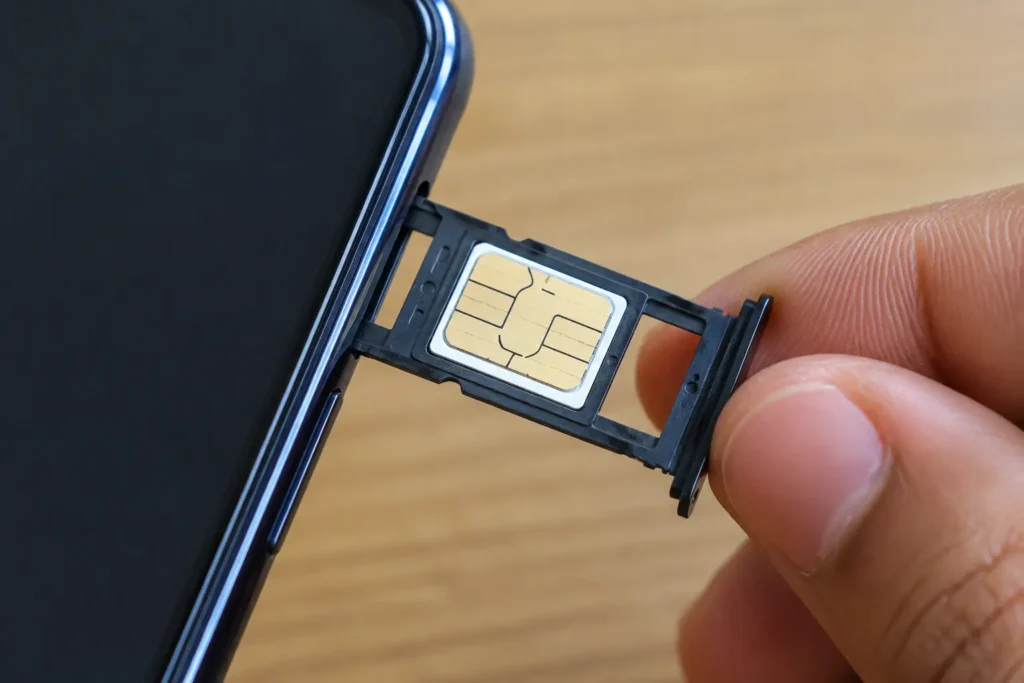
Always power off your phone first never eject the tray while it’s still on, since that can confuse the radio module mid-session. Use the ejector pin that came in the box (a straightened paperclip works if you’ve misplaced it), push it firmly and straight into the tiny hole next to the tray, and pull the tray out gently. Take the SIM card out completely, check which way the notched corner faces, and set it back into the tray exactly the way it came out. A SIM seated even slightly off-angle, or flipped the wrong way, won’t make contact with the reader pins even though it looks like it’s sitting fine.
Slide the tray back in until you feel it click into place, then power the phone on and give it 15 to 20 seconds to search for signal. A surprising number of “dead SIM” cases turn out to be a card that just wasn’t seated flush. If you’re doing this on a dual-SIM phone, double-check you’ve put the card back in the correct slot SIM 1 and SIM 2 sometimes behave differently depending on which one is set as your primary data line.
Solution 4: Check Your SIM Manager Settings
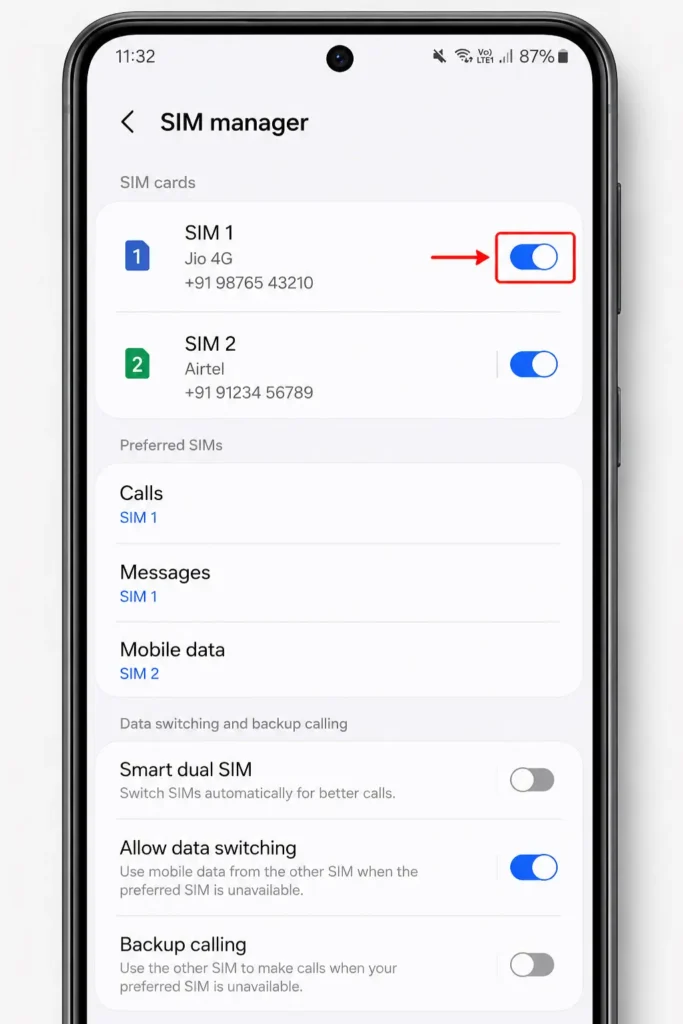
Sometimes the SIM card is working just fine, but Android has quietly turned off the slot in software. This happens more than people realize, especially on dual-SIM phones, or right after installing a system update.
Go to Settings, then look for Connections (on Samsung phones) or Network & Internet (on Pixel and most stock Android phones). From there, tap SIM Manager or SIMs. Check if the toggle next to your SIM slot is switched on. If it’s off, turn it on. If it’s already on, turn it off, wait 15 seconds, then switch it back on to force Android to re-detect the card.
Solution 5: Clean the SIM Card Contacts
If restarting and toggling settings didn’t help, it’s time to physically check the card itself. This is one of the most common causes of a “SIM card not recognized” error, especially if you’ve had the same SIM in your phone for a couple of years.
Those small gold contacts on your SIM card pick up dust, skin oils, and a very thin layer of oxidation over time. It’s not something you can usually see with the naked eye, but it’s enough to interfere with the electrical signal. This fix resolves a lot of cases that look like a dead SIM card but are really just a dirty contact.
Power off your phone and eject the SIM tray using the ejector pin that came in the box (or a straightened paperclip works fine too). Take a clean, soft eraser the kind on the end of a pencil works well and gently rub it across the gold contacts. This lifts off the oxidation without damaging the thin gold layer. Wipe away any eraser bits with a dry microfiber cloth, then pop the card back in.
If the contacts look particularly grimy, a cotton swab lightly dampened with isopropyl alcohol (90% or higher) works well too. Just make sure the card is completely dry before reinserting it. Never spray liquid directly into the phone’s SIM slot.
Solution 6: Try a Small Paper Shim if the Card Feels Loose
This one sounds unconventional, but it can help on older phones where the SIM slot’s contact pins have lost some of their spring tension.
Sometimes the little spring-loaded pins inside your phone’s SIM slot lose a bit of their tension over time, especially after a drop. This creates a tiny gap between the pins and the card, which causes the connection to cut in and out.
To fix this, cut a small piece of paper or clear tape to match the back (non-metal) side of your SIM card. Stick one or two thin layers onto the plastic backing never on the gold contact side and trim off any extra so it still fits inside the tray. This adds just enough thickness to press the card firmly against the internal pins. It can help with intermittent detection issues, though it’s an unofficial workaround rather than something manufacturers recommend if it doesn’t help, move on to the next fix rather than adding more layers.
Solution 7: Inspect the SIM Tray for Damage or Debris
Take the tray out again and lay it flat on a table. Check if it looks bent, warped, or cracked anywhere. A damaged tray won’t hold the SIM card at the correct angle, which means the contacts won’t line up with the pins inside your phone.
If the tray looks fine, shine a flashlight into the empty slot and check for dust or lint buildup. A quick burst of compressed air aimed at an angle into the slot can clear this out safely. Avoid poking anything metal, like a needle or pin, directly into the slot it’s very easy to bend the internal reader pins by accident, and that turns a simple fix into an expensive repair.
If your tray is genuinely damaged, it’s worth ordering a replacement tray made specifically for your phone’s exact model. Generic third-party trays are worth avoiding since even a slightly different thickness can cause more detection problems than it solves.
Solution 8: Use the Hidden Testing Menu to Reset the Radio
This is a bit more technical, but it targets the cellular radio directly without needing a full phone reset.
Open your phone’s dialer app and type in ##4636##. On most Android phones, this opens a hidden testing menu. Tap “Phone Information,” scroll down to find “Mobile Radio Power,” and switch it off. Wait around 30 seconds, then switch it back on. Restart your phone afterward for good measure.
A quick note: some carrier-branded or heavily customized phones (certain LG models, for example) block access to this code. If nothing happens when you dial it, just move on to the next fix.
Solution 9: Manually Select Your Network Operator
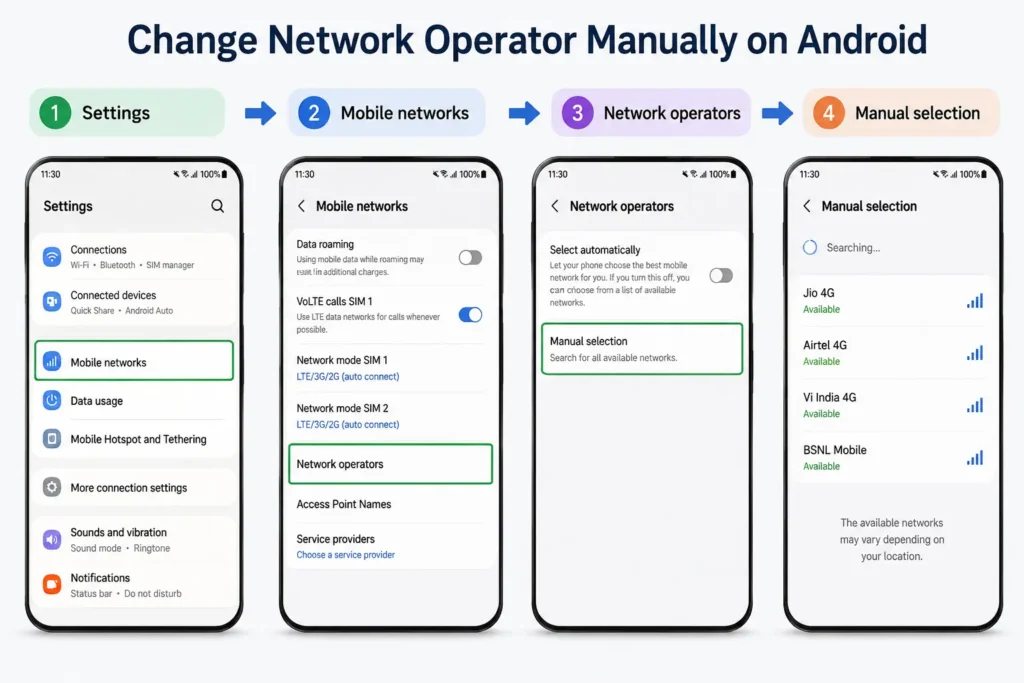
If your phone’s automatic network scanning is stuck or confused, sometimes forcing it to reconnect manually clears things up this is particularly common after switching between LTE and 5G coverage areas.
Head to Settings, then Mobile Networks. Tap “Preferred Network Type” and temporarily switch it to something like “LTE/WCDMA/GSM auto” or “4G only” instead of full automatic mode. Then go to “Network Operators,” turn off “Select Automatically,” and let your phone scan for nearby towers. This can take up to a minute. Choose your carrier’s name from the list once it appears, and once you’re reconnected, you can switch “Select Automatically” back on.
Solution 10: Clear the SIM Toolkit App Cache
The SIM Toolkit is a built-in Android app that handles special commands sent by your SIM card. If its cache gets corrupted, which can happen during a system update, it can interfere with SIM detection entirely.
Go to Settings, then Apps. Tap the three-dot menu in the corner and select “Show System Apps.” Scroll down and find SIM Toolkit (on some phones it might show up under your carrier’s name instead). Tap “Storage & Cache,” then “Clear Cache” followed by “Clear Data.” Restart your phone once you’re done.
If your Android SIM card problem started right after a software update, this is genuinely one of the more effective fixes, since it forces the system to rebuild its configuration files from scratch.
Solution 11: Reset Your Network Settings
If you’ve made it this far and nothing has worked yet, a full network settings reset is worth trying before considering a factory reset. This wipes saved Wi-Fi passwords, Bluetooth pairings, and APN settings, but it won’t touch your photos, apps, or personal files.
On Samsung phones, go to Settings, then General Management, then Reset, and choose “Reset Mobile Network Settings.” On Pixel or stock Android phones, it’s under Settings, System, Reset Options, then “Reset Wi-Fi, Mobile & Bluetooth.” After the reset finishes, restart your phone. It’ll pull fresh network settings directly from your SIM card and carrier.
Solution 12: Check for a Pending Software Update
Sometimes the fix is one you already have sitting on your phone waiting to be installed. Manufacturers regularly push out updates that specifically patch modem and baseband bugs that cause SIM detection issues, particularly after a major Android version update.
Connect to Wi-Fi, then go to Settings, About Phone, and Software Update. If there’s an update available, install it. This is one of the more effective fixes for “SIM card not detected after update” cases, since it’s often the update itself that introduced the bug in the first place, with the fix following shortly after.
Solution 13: Check Your eSIM Settings (If Applicable)
If your phone supports eSIM and you’re using a digital profile instead of, or alongside, a physical card, the fix looks a little different. Go to Settings, Network & Internet, then SIMs. If your eSIM profile shows up but looks grayed out, tap it and switch “Use SIM” to on. If it’s still not connecting, you may need to delete the profile and ask your carrier for a fresh activation QR code to set it up again from scratch.
How to Tell If It’s a Hardware Problem
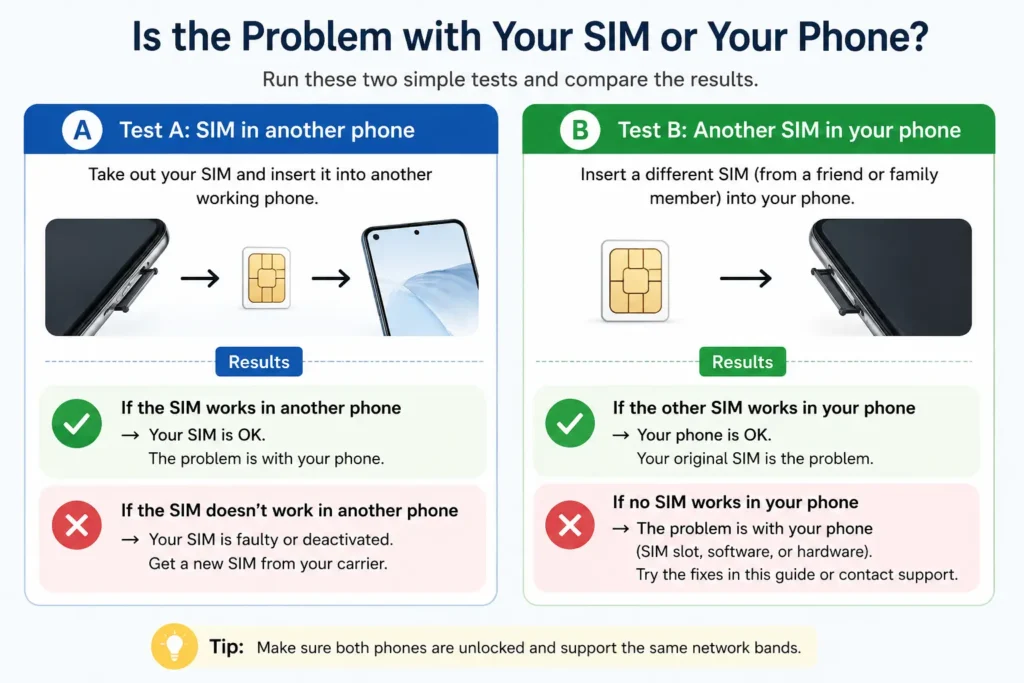
If you’ve tried everything above and your phone still says “no SIM card error,” it’s worth figuring out whether the problem is your SIM card or your phone itself.
The easiest way to check is a simple swap test. Put your SIM card into a friend’s phone (or any other working phone). If it still doesn’t work there, the card itself is likely damaged, and your carrier can issue you a replacement, usually within a day. On the flip side, if you put a card you know works into your phone and it also fails, the issue is with your device.
Another quick check is dialing *#06# on your phone. This should immediately display your IMEI number. If you see a valid string of numbers, your phone’s baseband hardware is working fine, which usually points back to a software or contact issue. But if it comes back blank, “Unknown,” or “Null,” that typically means there’s a deeper hardware problem, possibly related to internal components, and it’s time to visit an authorized service center. Samsung’s own support documentation for Galaxy devices recommends this same order for the “No SIM Card Detected” error restart first, then physically inspect the SIM card, then reset network settings.
When All Else Fails: Factory Reset
If your phone shows a valid IMEI number but nothing else has worked, a factory reset is your last software-based option before involving a repair technician. Back up your photos, contacts, and important data first, either to a cloud service or your computer. If you’ve already lost photos in the process say, an earlier reset or a botched update wiped some before you got to back them up it’s worth trying to recover them before you go any further; I’ve written a separate guide on how to recover deleted photos on Android even without a backup that’s helped a lot of readers get shots back that they thought were gone for good.
On Samsung phones, this is under Settings, General Management, Reset, Factory Data Reset. On Pixel and other stock Android phones, it’s Settings, System, Reset Options, Erase All Data. If your screen isn’t responding, you can also do this through recovery mode using your phone’s hardware buttons, though I’d only recommend this if the touchscreen fixes don’t work.
A Few Habits That Prevent This From Happening Again
A few simple habits can help prevent this from happening again. Power off your phone before removing or swapping a SIM card, rather than doing it while the phone is on. Hold the SIM card by its edges instead of touching the gold contacts, since skin oils speed up oxidation. And keep your phone’s software updated, since a lot of these bugs get patched quietly in routine updates.
If you’re also having trouble with your phone’s Wi-Fi dropping saved networks, I’ve put together a separate guide on how to find a saved Wi-Fi password on Android. And if your phone has been acting up in more than one way lately say it’s also refusing to charge properly it’s worth checking whether that’s a separate issue or connected to the same loose-connection gremlins; here’s what to do when your phone isn’t charging.
Final Thoughts
A “No SIM Card Detected” error feels alarming the first time you see it, especially if you’re expecting an important call or need mobile data urgently. But it’s rarely a sign that your phone is broken beyond repair. Most of the time, it’s a quick fix: a restart, a clean contact, or a simple settings toggle.
Work through these solutions in order, starting with the easiest ones. Chances are you’ll have your SIM card back up and running before you even need to think about visiting a repair shop.
Frequently Asked Questions
Quick answers to common questions about the “No SIM Card Detected” error on Android
Why does my phone suddenly say “No SIM Card Detected”?
This usually happens because of a communication breakdown between your SIM card and your phone’s baseband processor, which is the chip that manages calls, texts, and data. It can be triggered by a loose SIM tray, a background software crash, dirt on the gold contacts, or sometimes a recent software update. In most cases it’s fixable at home with a restart or a quick clean of the SIM contacts, without needing a repair shop.
How do I fix “No SIM Card Detected” without removing the SIM card?
Start with the simplest software fixes first. Restart your phone completely, wait about 30 seconds before turning it back on, and check if the error clears. If not, toggle Airplane Mode on and off from your Quick Settings panel, or check your SIM Manager settings under Settings to make sure the SIM slot toggle hasn’t been switched off accidentally. These steps fix the issue for a lot of people without ever touching the physical card.
Why does my SIM card stop working after a software update?
Software updates occasionally introduce bugs in the modem drivers or corrupt cached data used by the SIM Toolkit app. This can cause Android to lose track of the SIM card even though nothing physically changed. Clearing the SIM Toolkit app’s cache and data, then restarting your phone, usually resolves this. If a newer update is available, installing it often fixes the bug that caused the problem in the first place.
Why does my SIM card show “not detected” after a restart?
If the error appears specifically after restarting, it’s often a sign of a loose physical connection rather than a software glitch, since the SIM has to reseat itself during boot. Eject the tray, check that the card is seated flat and facing the correct direction, and look for any dust in the slot. If the card still doesn’t seat firmly, a thin paper or tape shim on the back of the card can help press it against the internal reader pins.
How can I tell if the problem is my SIM card or my phone?
The easiest way is a simple swap test. Put your SIM card into a different phone you know works. If it still fails there, the card itself is likely damaged and your carrier can issue a replacement. Then try a SIM card you know works in your own phone. If that one also fails to be detected, the issue is with your device, not the card.
What does it mean if *#06# shows a blank or unknown IMEI?
Dialing *#06# should display your phone’s IMEI number, which confirms your baseband hardware is working. If the result comes back blank, “Unknown,” or “Null,” it usually points to a deeper hardware issue, such as damage to the internal logic board or baseband chip, often caused by a drop or liquid exposure. In this case, software fixes won’t help, and the phone needs to be looked at by an authorized repair technician.
Can cleaning the SIM card contacts really fix the error?
Yes, and it’s more common than people expect. The gold contacts on a SIM card can pick up a thin, invisible layer of oxidation and skin oil over time, which interferes with the electrical connection. Gently rubbing the contacts with a soft eraser, or wiping them with a cotton swab and a bit of isopropyl alcohol, often restores a clean connection. Just make sure the card is fully dry before putting it back in the tray.
Will a factory reset fix “SIM card not recognized”?
A factory reset can help if the issue is caused by deep software corruption, but it should be your last resort after trying the simpler fixes, since it wipes your phone’s data. It’s only worth trying if *#06# shows a valid IMEI number, which confirms the hardware itself is fine. Always back up your photos, contacts, and files before doing a factory reset.
Why does my phone say “No SIM Card” but I still have an eSIM?
This usually means your digital eSIM profile has either been turned off or become corrupted. Go to Settings, then Network & Internet, then SIMs, and check if your eSIM profile is listed but grayed out. If it is, switch the “Use SIM” toggle on. If the profile isn’t registering at all, you may need to delete it and ask your carrier for a new activation QR code to set it up again.
How do I stop my SIM card from randomly losing signal?
Intermittent drops are often caused by a slightly loose connection inside the SIM slot, especially on phones that have been dropped or used for a few years. A paper or tape shim on the back of the card can add just enough thickness to keep it pressed firmly against the internal pins. It also helps to avoid removing the SIM tray while the phone is powered on, since that can add extra wear to the reader pins over time.