

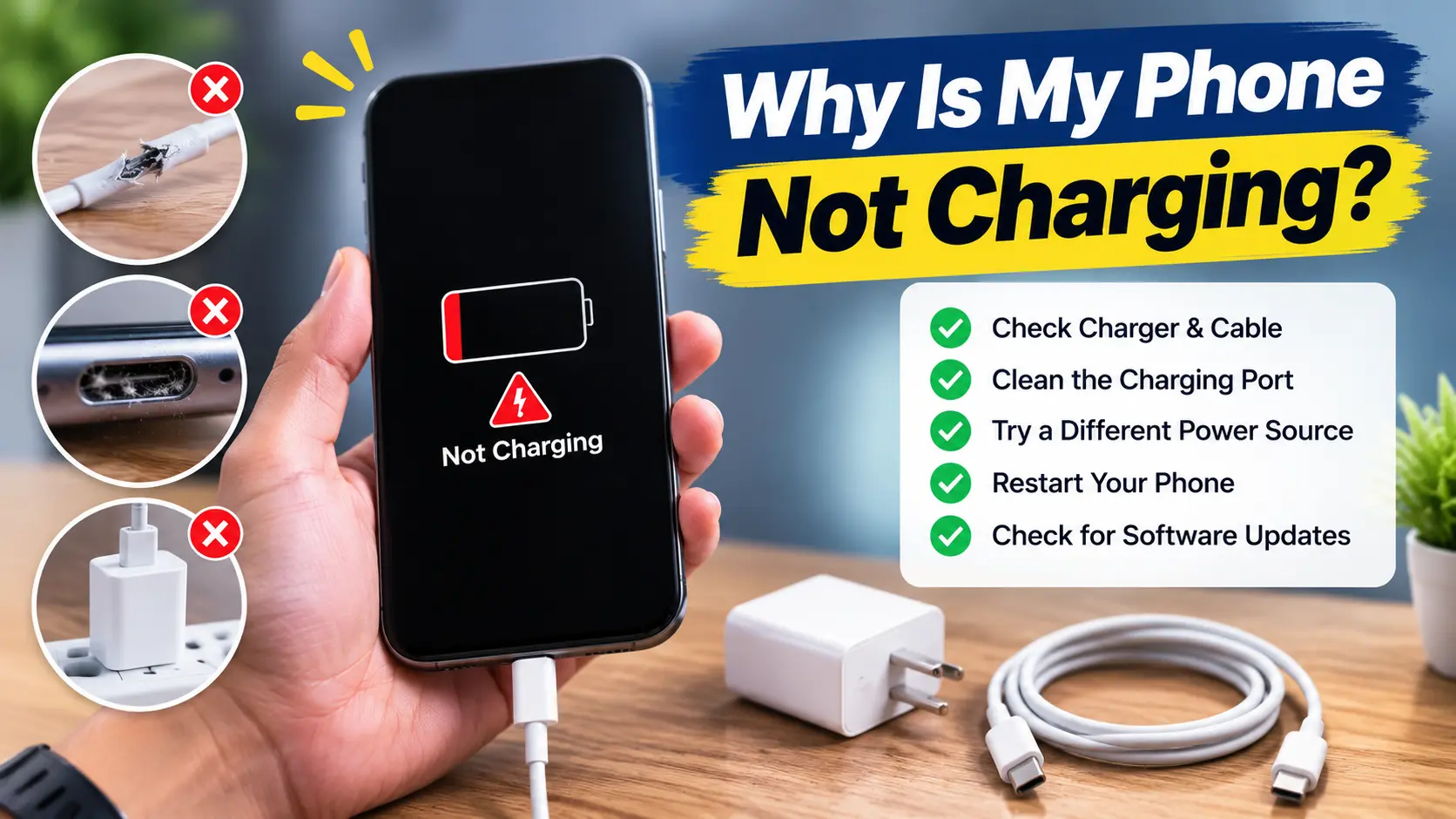
If your phone is plugged in but the battery percentage isn’t climbing or it’s charging so slowly you can watch the minutes tick by you’re dealing with one of the most common phone complaints there is. Most of the time, the answer to “why is my phone not charging even when plugged in” turns out to be something small and fixable: debris in the port, a worn cable, a background software hiccup not a dead phone.
This guide walks through the causes behind a phone not charging, from the easy-to-miss ones (yes, pocket lint is a genuine culprit) to the hardware issues that actually need a repair shop. Whether you’ve got an Android phone not charging or an iPhone stuck on the lightning bolt, this breakdown will help you figure out what’s going on and what to do about it.
The Three Places Where Charging Problems Usually Start
Before we dive into fixes, it helps to understand the basic idea. Charging your phone isn’t just “plug it in and power flows.” There’s actually a quiet negotiation happening between your charger, your cable, and your phone they agree on voltage and current before any real power moves. When that negotiation breaks down anywhere along the line, you end up with a phone that won’t charge, charges slowly, or shows the charging icon without the percentage ever climbing.
Almost every charging complaint falls into one of three buckets:
- Something physically blocking the connection– debris in the port, a worn connector
- Something wrong with the accessories or power source– the cable, the adapter, the wall outlet
- Something happening inside the phone itself– battery, software, or a damaged charging chip
Let’s go through the fastest fixes first, then dig into the specific scenarios that tend to send people searching in a panic.nic.
Quick Fixes
1. Check the Charging Cable
A dead cable is one of the most common causes behind a “dead phone” panic. Cables get bent, stepped on, and yanked out of the wall constantly, and the copper strands inside can fracture without any visible damage on the outside. A cable can look perfectly fine while barely delivering any power.
Grab a cable you know works with another device and try it. If your phone suddenly springs to life, you’ve found your culprit. It’s also worth being picky about where your cables come from cheap, uncertified ones often skip the internal components that regulate voltage properly. Stick with MFi-certified cables for iPhones and USB-PD certified cables for Android where you can.
2. Try a Different Charger
Separate from the cable, the wall adapter itself can quietly fail or simply not be a match for your phone. If your phone charger isn’t working, swap in a different one ideally the original adapter that came in the box, or one from another phone of the same type. Uncertified chargers and cheap car adapters have been known to send voltage spikes through to the phone, and budget accessories have been linked to real long-term damage.
3. Try Another Power Outlet
This one gets overlooked constantly. Before you blame your phone, rule out the wall itself. Try a different socket, and if you’re using a power strip or extension board, plug straight into the wall instead some strips (especially older or overloaded ones) don’t push enough current through. If you’re charging via a laptop or a car’s USB port, know that these often supply far less power than a proper wall adapter, which alone can look exactly like a “not charging” problem.
4. Clean the Charging Port Safely
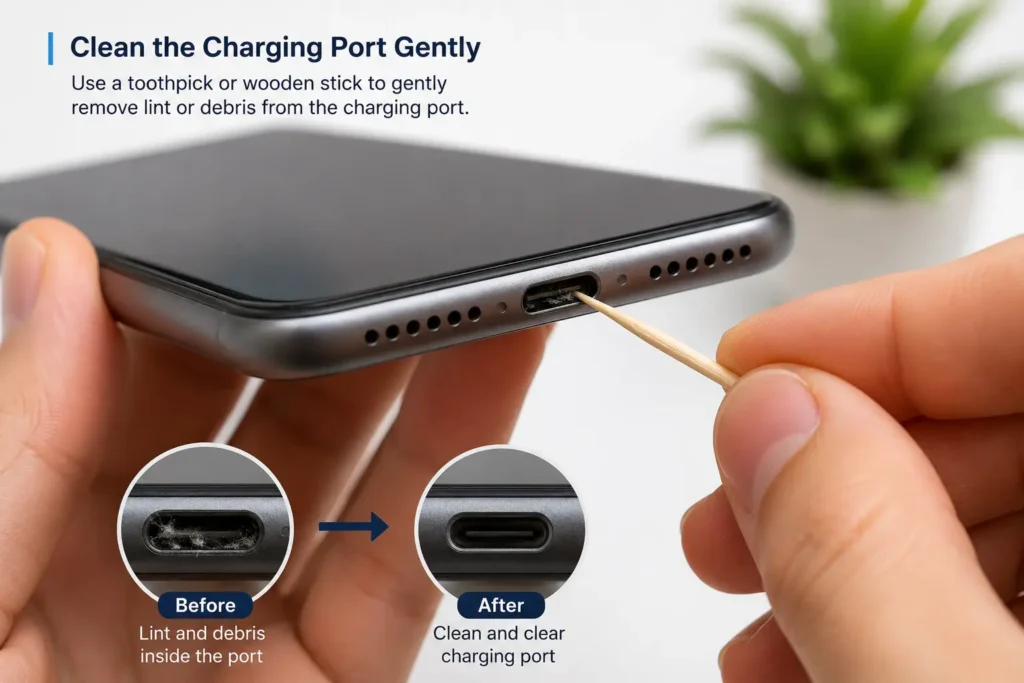
This is one of the most common fixes on this list. If you carry your phone in your pocket or bag, dust and fabric fibers work their way into the charging port every day. Every time you plug in a cable, it pushes that lint deeper, until it compresses into a dense little pad sitting right at the back of the port and that pad stops your cable from seating all the way in. It’s exactly why your phone might charge only when you hold the cable at a strange angle, or why the connection keeps dropping.
Here’s how to do it safely:
- Grab a bright flashlight and look straight into the port. You’ll usually spot the lint immediately it looks like a grayish felt pad.
- Use a wooden toothpick or a plastic pick (never metal a paperclip or SIM tool can bend the delicate pins inside or short the power line) and gently scrape along the inside walls to loosen the debris.
- Use a can of compressed air, held at a slight angle, to blow the loosened bits out. Repeat if needed.
A note on compressed air: this is a common and generally accepted cleaning technique, but Apple’s own device-cleaning guidance advises against compressed air on some products, since forceful air can push debris deeper or stress internal seals. If you’d rather avoid it, a soft-bristled brush is a safer alternative.
If the port still feels loose after cleaning, that’s usually worn-out retention springs inside the connector a repair job, not a cleaning one.
5. Restart Your Phone
It sounds almost too simple, but a forced restart genuinely fixes more charging glitches than people expect. Sometimes the software process that manages power intake crashes or freezes, and the phone stops responding to the charger even though nothing is physically wrong.
The steps vary by device:
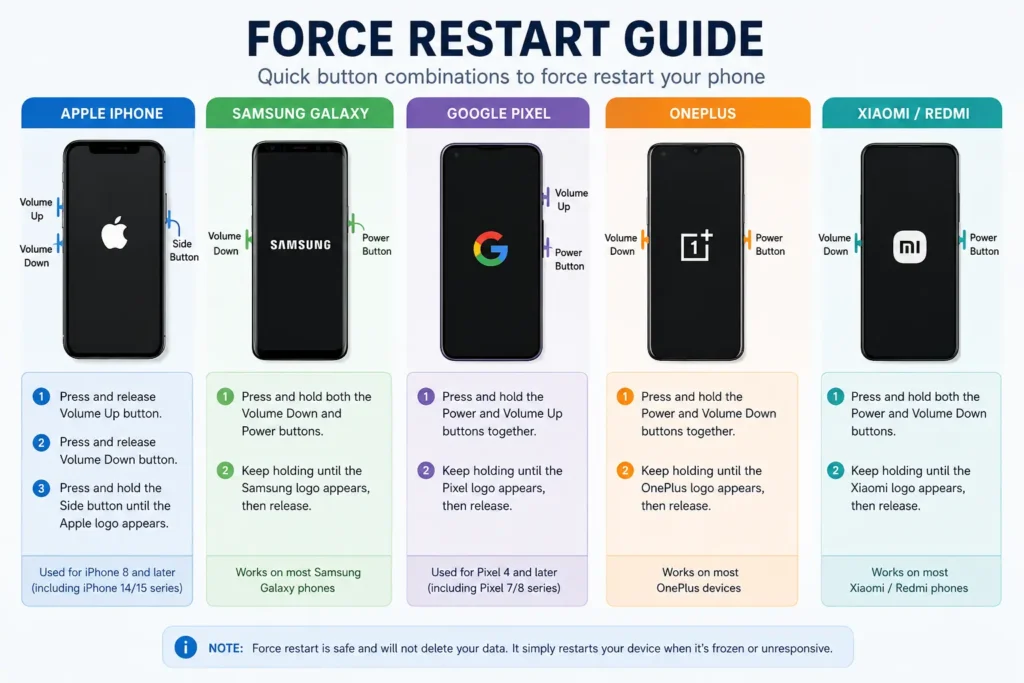
- Most Android phones: Press and hold the Power button and Volume Down button together for about 10–20 seconds until the screen restarts. Exact timing varies by brand, so check your manufacturer’s instructions if this doesn’t work.
- iPhone 8 and later (including all current models): Press and quickly release Volume Up, press and quickly release Volume Down, then press and hold the Side button until the Apple logo appears.
- iPhone 7 / 7 Plus: Hold Volume Down and the Side button together until the Apple logo appears.
- iPhone 6s and earlier: Hold the Home button and the top/side button together until the Apple logo appears.
This costs nothing and takes half a minute, so it’s worth trying before assuming the worst.
6. Check for Moisture
Both Android and iPhone models include sensors that detect liquid inside the charging port, and for good reason charging a wet port can cause a short circuit or corrosion. If you see a moisture warning, don’t ignore it and don’t force a charge.
The warning can stick around longer than expected, especially if mineral residue (like salt, if you were near the ocean) was left behind, or during humid, monsoon-type weather when moisture lingers in the air.
Official guidance from Apple and Samsung is consistent on what to do:
- Unplug the cable immediately.
- Gently shake or tap the phone, port facing down, to remove any visible liquid.
- Leave the phone in a dry, well-ventilated area Apple notes this can take up to 24 hours.
- Don’t insert anything into the port, including cotton swabs, tissue, or toothpicks, to try to dry it. This goes against Apple’s own guidance and can push debris deeper or damage the port.
- Don’t use compressed air, a hair dryer, or another heat source to speed up drying.
- Don’t put the phone in rice it doesn’t meaningfully help and can leave dust or grains inside the port.
If the alert keeps appearing after the phone has genuinely had time to dry, or you’re confident there’s no moisture at all, most phones offer an emergency override to force a charge but treat that as a last resort, not a routine option.
7. Check Battery Temperature
Lithium-ion batteries are picky about temperature, and your phone knows it. If you’ve been gaming while charging, left the phone in direct sun, or it’s sitting in a hot car, the phone’s protection system will deliberately slow down or pause charging to prevent damage even though everything is “working.” The same thing happens in the opposite direction: charging in very cold conditions can also cause the battery to accept power unpredictably.
If your phone feels noticeably warm and charging has stalled, take the case off, move it somewhere cooler and shaded, and let it sit for 10–15 minutes before trying again. This alone solves more “phone not charging” complaints than people expect, especially in peak summer heat.
8. Update Your Phone
Occasionally, a software bug either in a recent update or in a specific app interferes with power management. This can show up as a phone not charging after an update, or as charging that starts and stops randomly. Check Settings for a pending system update, and while you’re there, close or update any app that’s been misbehaving or draining the battery unusually fast, since heavy background activity can also make it look like the phone isn’t charging properly.
9. Try Wireless Charging
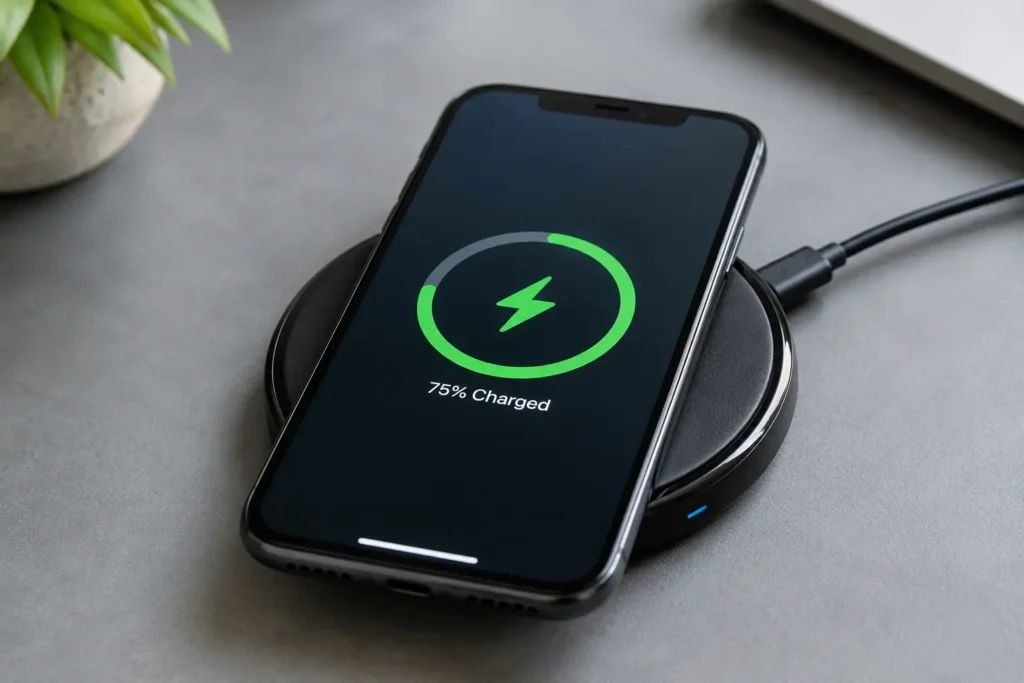
This can save a lot of guesswork. If you have access to a Qi or MagSafe wireless charging pad, place your phone on it and see if it charges normally. Wireless charging skips the physical port and the wired charging circuit entirely, routing power straight to the battery.
If wireless charging works fine but wired charging doesn’t, you can be fairly confident the issue is limited to the port, the cable, or the wired charging circuit not the battery or the core power system. That’s genuinely useful information if you end up needing a repair technician, since it narrows down exactly what needs fixing.
10. Check for Battery or Charging-Port Damage
If you’ve worked through everything above and nothing’s changed, it’s worth checking the two most common hardware culprits:
- Battery health: Lithium-ion batteries naturally lose capacity over time. Once battery health drops meaningfully below 80%, internal resistance rises, and charging energy turns into heat instead of stored power. Both iPhone and Android let you check this under Settings → Battery → Battery Health.
- Port or internal chip damage: A port with worn retention springs, or a fried charging chip from a bad power spike, will need a technician rather than a DIY fix. I’ll walk through exactly how to spot this next.
Quick Troubleshooting Checklist
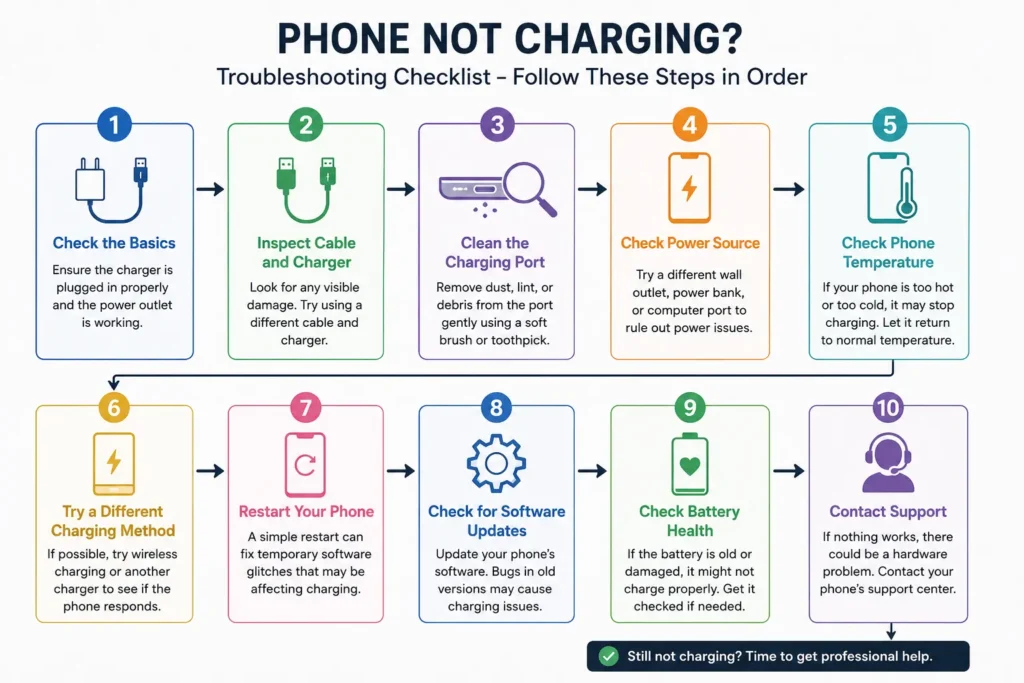
Walking through these steps in order saves time and avoids unnecessary repairs:
Clean the charging port thoroughly using a non-conductive tool. Swap in a different cable and charger to rule out accessories. Try wireless charging if it’s available, to isolate the fault. Force restart the phone to clear any software freeze. Check your battery health and charging-related settings. If none of that works, it’s time to consider a professional repair for the port, battery, or internal charging chip.
Phone Shows Charging but Battery Percentage Isn’t Increasing
This specific symptom the charging icon is on, but the number never climbs deserves its own explanation, because it usually points to one particular cause rather than a random guess.
On iPhones, Apple uses dedicated chips on the logic board (commonly called Tristar, Hydra, or Kraken depending on the model) to manage charging and verify accessories. These sit between the port and the phone’s power system. When a cheap or damaged charger sends an unfiltered voltage spike through the cable, it can fry this chip. The phone still shows the charging icon, but the battery percentage never actually moves, because zero current is getting through. Repair technicians sometimes call this “fake charging,” and it’s a telltale sign of chip damage rather than a simple port or cable issue. If you’re also seeing your iPhone drain unusually fast even when it’s off, “Accessory Not Supported” alerts on a genuine Apple charger, or trouble connecting to a computer, those point the same direction. Unfortunately, this typically needs professional micro-soldering repair.
Android phones have an equivalent a power management IC (PMIC) that regulates incoming current and it can fail the same way after a voltage spike or long-term exposure to a bad charger. If cleaning the port, swapping cables, and testing on wireless charging all rule themselves out, this internal chip is usually what’s left.
One thing worth checking here too: if your phone has taken a drop or been exposed to moisture recently, it’s not unusual for charging-chip damage to show up around the same time as other odd symptoms a hard knock or moisture exposure can affect more than one internal connector at once, so it’s worth also checking why your phone says Emergency Calls Only if you’re seeing both issues.
Android Phone Not Charging
Android troubleshooting has a few quirks worth knowing about specifically:
- Battery-protection settings. Many Android phones Samsung’s “Protect Battery,” for example deliberately cap charging at 80–85% to preserve long-term battery health. If your phone seems to “stop” charging at a suspiciously round number, check this setting before assuming anything is broken.
- Fast-charging mismatches. Android brands use different fast-charging standards (Quick Charge, VOOC, Super Fast Charging, and so on). Using the wrong-brand charger usually still charges the phone, just much slower than expected it’s not actually a fault.
- Port debris affecting more than charging. The same lint and dust that clogs a charging port often sits right next to the SIM tray, and a dirty or misaligned tray can produce its own separate headache. If you’re dealing with both a charging issue and connectivity trouble, it’s worth a look at no SIM card detected on Android as well the cleaning approach is nearly identical.
- A stuck or crashed system process. This is the most common reason a phone not charging after an update happens on Android specifically, since a background process tied to power management can hang after installing new system files. A force restart (see Quick Fix 5) usually clears it.
iPhone Not Charging
iPhones tend to run into a slightly different set of issues:
- Optimized Battery Charging. This learns your daily routine, charges to around 80%, holds there, and finishes right before you usually wake up. It’s a common reason an iPhone appears to “stop” charging overnight nothing is actually wrong.
- Lint in the Lightning or USB-C port. Because of how iPhones sit in pockets, this is one of the most common iPhone charging complaints see Quick Fix 4 above.
- Non-MFi cables. Apple’s chip-level verification (the same Tristar/Hydra/Kraken system mentioned earlier) can refuse to charge properly, or charge very slowly, with uncertified accessories. This is by design, not a fault.
- “Fake charging.” If the lightning bolt is showing but the percentage isn’t moving at all, revisit the section above this is the classic sign of internal chip damage on iPhones.
Phone Not Charging After an Update
Right after installing a system update, it’s genuinely common for a phone to charge slower or seem to stall for a little while. A few things are usually happening in the background: the phone is re-indexing apps and files, restoring settings, or running one-time optimization tasks that spike CPU usage and generate heat which, as covered in Quick Fix 7, can throttle charging on purpose.
If this doesn’t settle down within a few hours:
- Force restart the phone.
- Check for a follow-up update companies frequently patch power-management bugs within a week or two of a rocky release.
- Check Battery settings for any single app suddenly consuming an unusual amount of power, and update or close it.
Phone Not Charging When Turned Off
If your phone was left completely dead for a long stretch, don’t panic if it doesn’t respond the second you plug it in. When a battery drains too far, a protection circuit locks the phone out of turning on immediately, as a safety measure. Leave it connected to a working wall charger not a laptop, which supplies less current for 30 to 60 minutes before trying to power it on. It’s easy to assume a phone is dead for good when it just needs a bit of patience to rebuild enough charge to boot.
If your phone was off for a while because of a drop, water exposure, or a scare like this, it’s natural to worry about what happens to your photos if it doesn’t come back cleanly. If that ever happens to you, this guide on recovering deleted photos on Android without a backup walks through your options worth bookmarking before you need it, not after.
Phone Charging Very Slowly
Slow charging almost always comes down to one of these:
- A worn cable that can’t carry enough current, forcing a trickle charge (see Quick Fix 1).
- The wrong wattage adapter a 5W charger will always charge slower than an 18W or 25W one, even on a healthy phone.
- Wireless charging’s natural inefficiency it’s simply slower than a wired connection by design, not a sign of a problem.
- Background apps actively using the phone while it charges, which competes with the incoming power.
- Battery health decline see Quick Fix 10 where higher internal resistance turns charging energy into heat instead of stored power.
- Heat throttling see Quick Fix 7 which is often the answer if slow charging only happens during gaming or on hot days.
When Should You Get the Phone Repaired?
I’ll be honest with you not every charging issue is a DIY fix, and that’s okay. If you’ve cleaned the port, tried different accessories, tested on wireless charging, force restarted the phone, and it’s still not charging, you’re likely looking at a deeper hardware issue: a damaged logic board chip, a fractured internal flex cable, or a battery that genuinely needs replacing. These repairs involve delicate micro-soldering work that really does need a trained technician with the right tools.
Trying to force it yourself at this point risks turning a fixable problem into a much more expensive one. I’d rather you spend a little on a proper diagnosis than end up needing a full phone replacement because of a slip with a screwdriver.
Frequently Asked Questions
Why is my phone not charging even when plugged in?
Why is my phone charging but not going past a certain percentage?
Why does my phone’s charging port feel loose?
Can a cheap charger actually damage my phone?
Why is my Android phone not charging after a software update?
Is it bad to leave my phone charging overnight?
Final Thoughts
Dealing with a phone that won’t charge is genuinely stressful, especially when you need it and it just won’t cooperate. But the vast majority of these problems come down to something simple a bit of pocket lint, a worn cable, or a battery-saving feature quietly doing its job in the background. Work through the steps above in order, and you’ll likely have your phone charging normally again before you need to think about a repair shop.
If you’ve tried everything here and you’re still stuck, it might genuinely be a hardware fault worth getting looked at professionally and that’s a perfectly normal outcome too. Better to know for sure than to keep guessing.
Phone Not Charging Troubleshooter
Answer a few simple questions to identify the most likely cause and solution.
What type of phone do you have?
What happens when you plug it in?
Have you tried another charger and cable?
Is the charging port dirty or loose?
Has the phone been exposed to water recently?
Does the phone become hot while charging?
Moisture Detected
Confidence: 90%Your phone has likely engaged its automated safety lockout to prevent short-circuiting while moisture remains in the port.
Recommended Fixes
- Unplug immediately and allow the port to air-dry completely for 2-4 hours.
- Do not insert pins, cotton swabs, or blow hot air into the port.
- Use wireless charging safely while the wired port dries.
Dirty or Loose Charging Port
Confidence: 85%Pocket lint, debris, or worn retention springs are preventing the cable pins from seating firmly against the charging contacts.
Recommended Fixes
- Inspect the port under a bright light and clear compacted lint with a wooden toothpick.
- Try a new cable with unworn connector clips.
- If the connector wiggles freely, port replacement by a technician is required.
Faulty Cable or Adapter
Confidence: 80%Most charging failures stem from internal wire breaks near the connector head or a failed wall adapter transformer.
Recommended Fixes
- Test the phone with an official/certified high-wattage charging cable.
- Plug into a different wall outlet directly (bypass power strips).
Charging IC / Battery Degradation
Confidence: 75%The phone recognizes the power source, but current is failing to transfer into the battery cell due to an internal circuit fault or depleted battery health.
Recommended Fixes
- Perform a forced restart to reboot the battery power-management controller.
- Check battery health settings (under 80% maximum capacity typically causes charging stalls).
- Have the charging IC or battery replaced at an authorized repair facility.
Thermal Throttling Lockout
Confidence: 85%Modern smartphones automatically halt charging when temperatures exceed safe limits to avoid battery swelling or permanent degradation.
Recommended Fixes
- Remove heavy protective cases while charging.
- Avoid gaming or running GPS navigation while connected to power.
- Allow the device to rest in a cool room for 15 minutes before plugging back in.
General Charging / System Fault
Confidence: 70%A background software deadlock or general power-draw incompatibility is stopping normal power delivery.
Recommended Fixes
- Perform a forced reboot while connected to power.
- Install any pending system updates that patch power-management bugs.
- Test with a verified OEM charging block.